 Business & Finance
Office Suites & Tools
Universal Document Converter - business license Description
Universal Document Converter - business license

Author Company: fCoder SIA
Universal Document Converter - business license is an intuitive productivity solution that allows users to convert documents into PDF or image file formats for distribution. ... ...
File Size:
OS:
License: - Time Limit, free to try, to buy.
File Size:
OS:
License: - Time Limit, free to try, to buy.


Universal Document Converter - business license
Convert any document you have to PDF or image file like JPEG or TIFF!
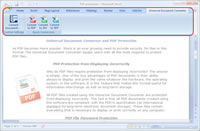
Universal Document Converter is an intuitive productivity solution that allows users to convert documents into PDF or image file formats for distribution. The application installs itself as a virtual printer on the user’s computer. Once the file to be converted is opened, the user only needs to choose the “Universal Document Converter” printer and “print” the file for the conversion to successfully take place.
Universal Document Converter is capable of converting a document from its current format into one of eight different output formats, including popular options like PDF, JPEG, DCX, BMP, PCX, GIF and even high quality TIFF and PNG image files. The application employs an advanced algorithm for image quantization, which makes it possible to convert a file into your desired format while still retaining the highest possible quality in comparison to the original.
As security is a high priority in today’s modern technological climate, it should come as no surprise that Universal Document Converter offers a number of different document protection methods for you to choose from depending on your needs. Copy-paste protection can be enabled at will, which will prevent the recipient from copying the text and pasting it into a different program on their computer for unauthorized distribution. Watermark compatibility is also offered, which extends content protection to hard copies of documents that may be printed in the future. Standard password protection is also available.
Universal Document Converter is the most complete solution for the conversion of documents of any types into Adobe PDF or graphic files. The underlying basis of Universal Document Converter is the innovative technology of virtual printing. As a result, exporting Microsoft Word documents, Excel tables, PowerPoint presentations, or Autodesk AutoCAD drawings into a chosen format is just as easy as using a desktop printer. Universal Document Converter can assist you in preparation of documents for web publishing, while protecting them from unauthorized copy & paste practices. And, of course, choosing Universal Document Converter means big savings. Not only do you cut expenses on the development and implementation of a corporate document flow system, but you also save your precious time when preparing PowerPoint presentations and sending materials to the printshop or publisher. With Universal Document Converter, exporting documents is exporting worries away.
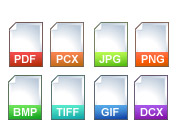
Convert documents into PDF or image files – TIFF, JPEG, PNG, PCX, DCX, GIF or Bitmap. It’s quick, intuitive and extremely convenient.
Forget about old fashioned print-and-scan forever. From now on, converting documents directly to PDF or images is the way to go.
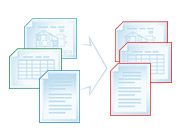
Drawings or multipage reports, scans or commercial posters, with virtual printing technology, file conversion becomes effortless.
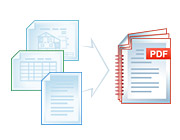
No more file format headaches. Create multipage documents from files of various types in mere seconds.
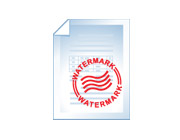
Place a graphic or text watermark on your documents. Protect your work. Make it stand out.
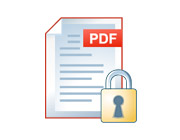
RC4 encryption algorithm. That means peace of mind no matter what: your PDF files are secure and well-protected against unauthorized access.
Export documents with a resolution up to a whooping 6,000 DPI. Design, advertising and art materials preserve even the finest details and are ready to shine.
Remove empty margins by choosing automatic border cropping or automatically resize output files to make high quality thumbnail images. You set the rules.
Print or web quality? Depending on a task, you are able to choose the optimal ratio between visual quality and file size.
Extract separate files out of multipage documents. You don’t have to save an entire book, if you just need a page or two.
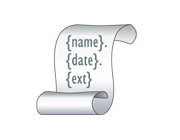
Let the program care about the naming part. Create a basic template, and enjoy the perfect order of things. It just works.
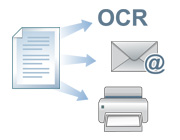
Execute your own application or batch-file to add any custom processing to each output file. Export documents like pro.
Instantly access Universal Document Converter from remote computers thanks to compatibility with Microsoft Windows Terminal Services and Citrix.
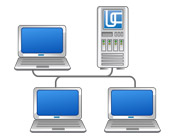
Share Universal Document Converter over a network and use it on workstations to dramatically speed up conversion of documents.

Public API simplifies compatibility of the document management systems with Universal Document Converter.
Any document may be used as source files for Universal Document Converter: Microsoft Word documents, Adobe PDF files, Microsoft Excel spreadsheets, Autodesk AutoCAD drawings, Microsoft PowerPoint presentations, web pages, etc. The only existing constraint is that your computer must have proper software installed to open and print the document in question.
The Universal Document Converter is able to convert documents to files of the following types: BMP, DCX, GIF, JPEG, PNG, TIFF, PDF.
BMP (Bitmap): a raster graphic format. It is supported by many applications under DOS, Windows, and OS/2 but is not supported by Mac OS. BMP lends itself to lossless sequential compression using the RLE algorithm. Color bit depth may vary between 1 and 48 bits per pixel. Large file size is BMP’s primary drawback.
DCX: a PCX-based bitmap graphic format. This is essentially multi-page PCX. Uses a fast but inefficient compression algorithm unsuitable for images with a lot of detail, such as photographs.
GIF (Graphic Interchange Format): a bitmap graphic format developed specifically for the transmission of images over networks. GIF images are stored as lines, and only the format with an indexed color palette is supported. The standard was developed to support a 256-color palette. The GIF format uses lossless LZW compression algorithm. Therefore, good compression is achieved for images with lines containing recurring sequences, such as, images with many horizontally aligned pixels of the same color.
JPEG (Joint Photographic Experts Group): a bitmap graphics format designed specifically for compact storage and online publication of photo quality color images. At this time, it is the most widely used format in the world. JPEG comprises a lossy image compression algorithm. The degree of compression may be set by the user producing files of different sizes and images of different quality.
PDF (Portable Document Format): a platform-independent electronic document format developed by Adobe Systems using a number of capabilities offered by PostScript. Its primary purpose is to present printed matter in an electronic format because much of the advanced professional printing equipment is able to process PDF files directly.
PNG (Portable Network Graphics): a bitmap graphic format that uses lossless compression. PNG was designed both as an improvement and a replacement for GIF and as a graphic format that may be used without a license.
TIFF (Tagged Image File Format): a bitmap graphic format. It was developed by Aldus in conjunction with Microsoft. It has become popular as a storage format for images with great color bit depth. TIFF is very flexible and can store photographs using different palettes as well as different color spaces. This format implements support for a number of compression algorithms. In addition, it is possible to save TIFF files with no compression.
All graphic formats have unique features, drawbacks, and advantages. Therefore, each is best suited for a particular class of problem.
Photos. Traditionally, JPEG has been used to create, store, and process photographic images. However, it should be kept in mind that this format uses lossy compression. And the higher the compression, the more obvious the various image artifacts are.
Electronic Documents. The most common electronic format for documents is PDF. Thanks to its unique features, it has become the international standard in this area.
Internet Graphics. The two most used online formats are JPEG and GIF. One or the other is normally selected based on the size of the resulting file. JPEG is better for images with a lot of detail and a large number of hues. GIF is best for images with a relatively small number of colors (especially, as part of the website design layouts). The PNG format can be used alongside with GIF, though less commonly, because some web browsers do not support it. In addition, PDF files may be used for the online publication of price lists, documents, various product catalogues, etc.
Printed Graphics. The TIFF graphic file format is the printing industry’s de facto standard. Uncompressed files are used in certain cases. However, the LZW lossless compression algorithm is most commonly used.
Presentation Graphics. JPEG and PNG are normally used to insert graphic images into presentations. The former is used for photos and other images with a high degree of detail, while the latter one is used for graphs, diagrams, etc.
Animation. The GIF format is used to create graphic animation files.
Special Capabilities. Sometimes, users have a need to address a special problem. A suitable format is then selected based on the situation. Thus, much of the legacy or special-purpose software does not support anything other than BMP graphics files. Therefore, if such software is used, files must be converted into this format.
If a certain Word document received by email is not displayed correctly or cannot be opened at all, this may happen for many reasons: there is no required software installed on a tablet, or the preferred font is not there on the computer, etc.
Saving this document as a bitmapped PDF file will be a good solution. A bitmapped PDF will ensure that the document will be opened on any PC, tablet, or a smartphone.
The PDF format is known for its portability. It will accurately display any document on any electronic device. A bitmapped PDF will guarantee that each page of a document will contain one graphic file which will be displayed correctly regardless of the circumstances.
Saving the document as a PDF file before sending it over by email means that the recipient will be able to open it on any computer or a tablet. The document will not be distorted and will look exactly the same as the original.
To save Word document as PDF, download and install the Universal Document Converter. Open the document, select Universal Document Converter toolbar and click Convert to PDF:
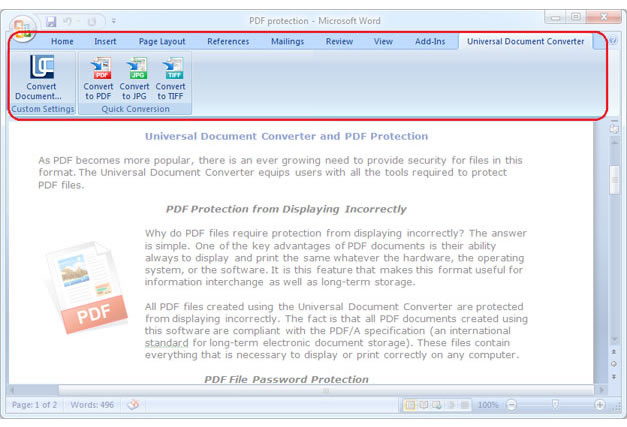
By default, Universal Document Converter will save any document as a searchable PDF file. It means that the text contained in the document becomes searchable by a key word or a phrase. It also means that anybody who will receive this document by email will be able to copy any text from it. To disable Copy & Paste option for your documents, convert Word documents to bitmapped PDF. Please follow the instruction:
- Open the document and click Print
- Select Universal Document Converter from the list and click Properties
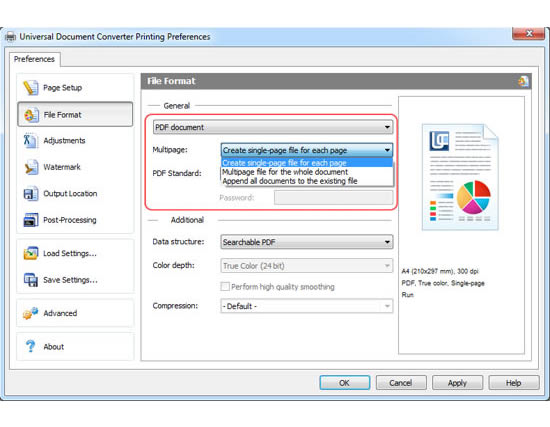
- Go to File Format, select PDF Document as output format and select Bitmapped PDF (like on the screenshot below)
- Click OK to start saving a Word document as a Bitmapped PDF.
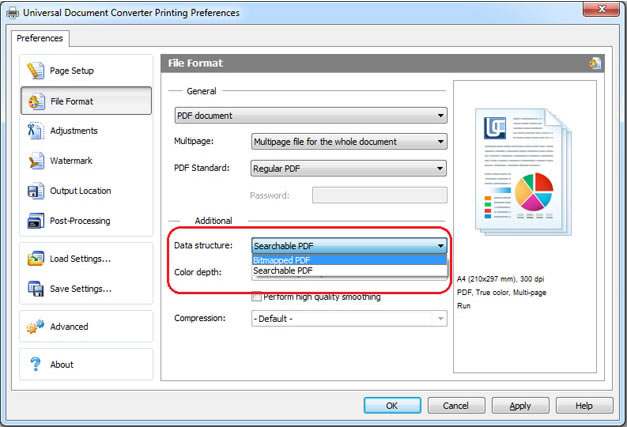
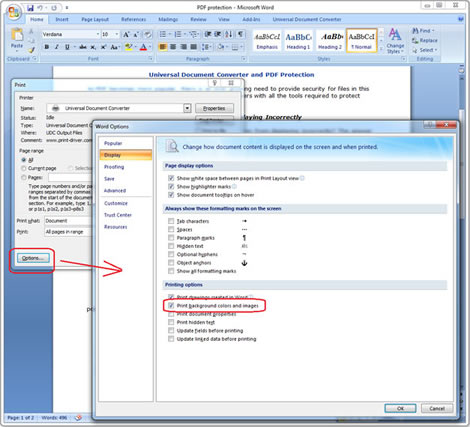
If the background color or an image in a document fails to be printed, it’s necessary to do the following:
- Open Print window and click on Options… in the bottom left corner
- In the group Printing options select Print background colors and images
Watermarking is used when it’s necessary to point out the significance of a document (i.e. “strictly confidential”, etc), or to protect intellectual property.
To place the watermark, please follow the instruction:
- Open the Word document and click Print
- Select Universal Document Converter from the list and click Properties
- In the settings select Picture (as shown on the screenshot below)
- Choose the image which size is approximately the same as the size of the document
- Select Background from the Method submenu
- Click on Stretch watermark to fit page
- Click OK to print the document in PDF.
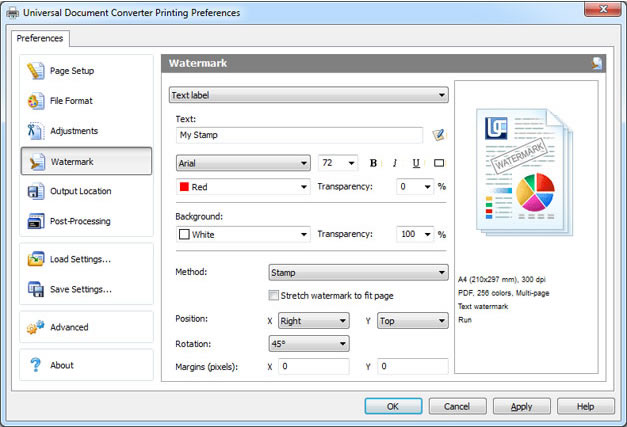
Adding a letterhead to a PDF document will require two files: one containing the letterhead, and another one containing the Word document.
Please follow the instruction:
- Open the Word document and click Print
- Select Universal Document Converter from the list and click Properties
- Go to File Format, select PDF Document as output format
- Go to Watermark, choose between Text label or Picture and select the desired settings
- Click OK to start the conversion process.
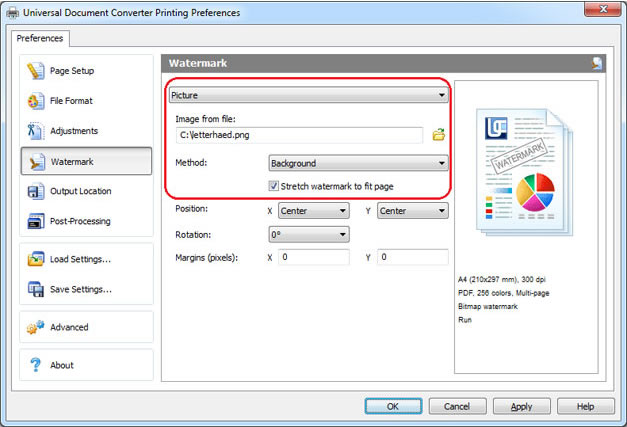
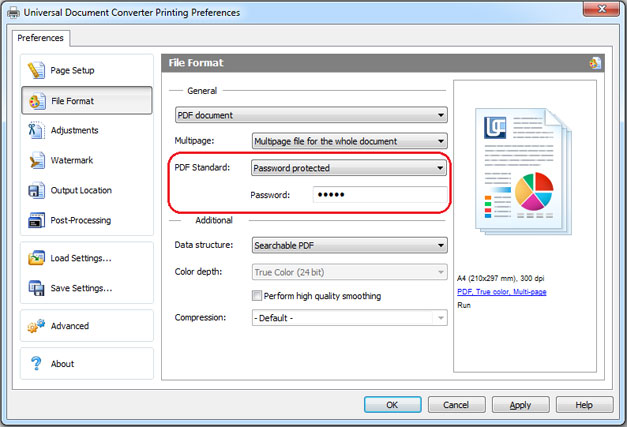
To protect your document from unauthorized access please do following:
- Open the Word document and click Print
- Select Universal Document Converter from the list and click Properties
- Choose the file File Format the menu and be sure that the PDF Document is selected
- In PDF Standard select Password protected and enter password like shown on the screenshot below
- In case you need to add pages to an existing PDF, the password should remain the same. If the existing PDF is not password protected, new pages should not be password protected either
- Click OK to print the document in PDF.
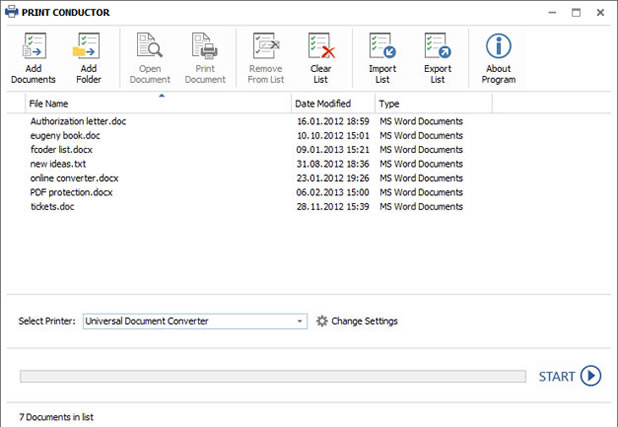
To automate the process of Word files conversion, you will need three programs: Microsoft Word, Universal Document Converter, and Print Conductor.
- Start Print Conductor and add your Word documents to the list
- Select Universal Document Converter printer
- Click Change Settings and specify PDF Document as the output file type
- Click Start to begin converting the list of Word documents to PDFs:
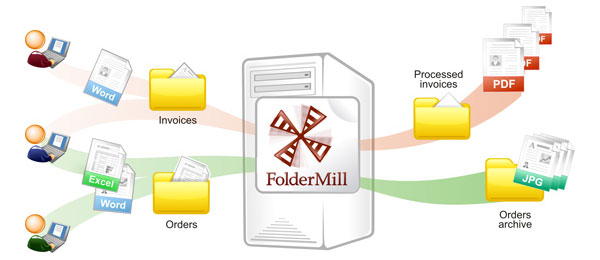
Automatic document conversion can be performed by means of the FolderMill software. The software is normally installed on server to monitor the incoming files. Specific rules set up by the company employees will be followed to guarantee that all the files received from the outside resources will be converted to the desired file formats according to the employees’ individual preferences.
For instance, in case the received image file is saved in the PDF format, it will be automatically converted to JPEG, or vice versa. There is nothing to be done manually. All the company employees need to do is to copy the PDF file that he/she needs to convert into his/her personal network folder and receive the converted document from another folder.
The Universal Document Converter package includes a public API and example code for integration in the independent developer and system integrator software. In addition, automatic deployment speeds up the installation of the Universal Document Converter significantly if it needs to be installed on a large number of workstations.
Thanks to this, using Universal Document Converter as the “conversion kernel” helps developers focus on implementing the unique features of their solutions without wasting time or effort on developing a virtual printer in house.
You are welcome to look at examples of converting Word to PDF for different programming languages.
2Printer is the command line utility that can automate printing Word documents and text files. The command line interface enables the users to create batch-files for automating their specific printing needs. This tool may be included in your Windows Task Scheduler to automate printing process on your computer.
2Printer uses public API of Microsoft Word to print text files. It means that in necessity to print the documents saved as TXT, RTF, DOC or DOCX, you need to have Microsoft Word on your computer.
2Printer is compatible with any mechanical printers connected to a computer or accessed via the local networks, and also virtual printers like Universal Document Converter. Thank of this, you are able to convert Word documents to PDF if you select Universal Document Converter as a printer in 2Printer command line.
DocuFreezer is designed to convert Microsoft Word, Excel and PowerPoint documents to PDF saving internal and external links, page layouts and fonts.
Users of DocuFreezer will benefit from numerous conversion options – the software will convert documents and PDF files to JPG, TIFF or PNG formats “freezing” the look of the original documents and protecting them from any amendments. No matter which device the document will be displayed on, it will look exactly the same.
DocuFreezer is free for non-commercial purposes. Try DocuFreezer now and see how efficiently the program works!
A virtual printer is specialized software implemented as a printer driver but not connected to an actual printer. This approach is used in many applications that have to do with the conversion of documents to other formats as well as sending fax messages.
Here is the basic operating principle of a virtual printer: once this software is installed, a new printer appears on the system. Whenever a document is sent to it, the program attempting to print converts the file into a standard data stream (usually, a program written in PostScript). The driver of a conventional printer converts it into a series of commands physically to control a printing head. A virtual printer handles the stream differently, for instance, by saving it as a graphic file in a specified format.
If one were to compare a virtual printer with a conventional document converter, it would prove to have two important advantages. The first one is its flexibility. A virtual printer will convert any source documents regardless of their format. The only condition is that the user must have the software to open the file in question and to send it to a printer. The other advantage is the ease of use for the end user. Any person who knows how to print a file can use a virtual printer to covert the documents without any prior training.
Virtual printers are frequently used as modules in a multi-purpose editor to convert the documents into a desired format. In addition, there is a fairly large number of stand-alone products in the virtual printer category on the market. They normally have more sophisticated functionality.
Ability to save several separate files as a single multipage file like PDF, TIFF, or DCX is one of the unique features of Universal Document Converter. Universal Document Converter allows combining the files of different types into a single file in just a couple of clicks.
To combine several documents into a single multipage file you can “print” them one after another using the Universal Document Converter as the virtual printer. Specify the output file format (such as PDF) and choose the option Append all documents to the existing file.
Combining several graphic files into a single file, such as PDF, TIFF, or DCX takes longer time than processing the documents.
Universal Document Converter and Print Conductor can help combine documents and images into a single multipage PDF file.
- Add the documents and images to the list
- Click Change Settings
- Choose PDF document from the list of output files and select the option Append all documents to the existing file
- Click OK to save the introduced settings and click Start to convert your images and documents into a single PDF file
Software developers involved in similar projects can quickly install the Universal Document Converter on any number of workstations thanks to its automatic deployment, and can make use of the available public API and code examples.
To lay a stress on the document’s significance or limited intended use, you can place a text watermark indicating it.
To place the watermark, please follow the instruction:
- Open the document and click Print
- Select Universal Document Converter from the list and click Properties
- Go to Watermark, choose Text label and select the desired settings
- Click OK to start the conversion process.
You also can place picture on the document and add a letterhead to a document.
To limit unauthorized access to your documents you should convert them into password protected PDF files. Please follow the instruction:
- Open the document and click Print
- Choose the file File Format the menu and be sure that the PDF Document is selected
- In PDF Standard select Password protected and enter password like shown on the screenshot below
- In case you need to add pages to an existing PDF, the password should remain the same. If the existing PDF is not password protected, new pages should not be password protected either
- Click OK to print the document in PDF.
The Page Setup tab provides an interface to configure "print" settings for pages being sent to output files. It consists of two primary sections: "Geometry" and "Processing Quality".
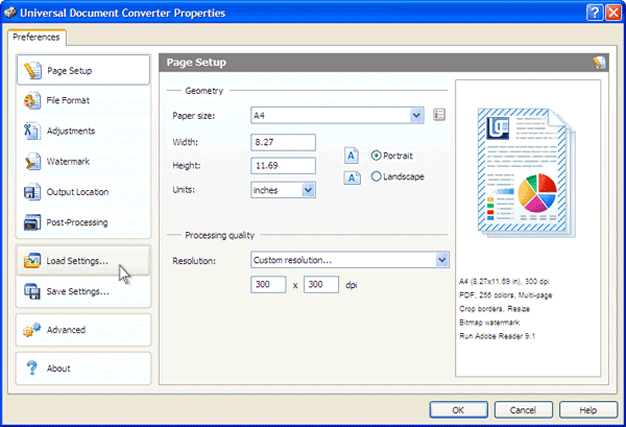
The Geometry section is designed to configure output file pages sizes. It uses the following controls.
Page size. Provides access to one of the standard page sizes, which a user may modify or add to using the Paper Form Manager.
Width. Page width in the selected units of measure.
Height. Page height in the selected units of measure.
Units. Units of measure used to specify width and height: millimeters, inches, or pixels.
Portrait/Landscape. Page orientation: portrait or landscape.
The Processing Quality section is designed to configure output file resolution. It uses the following controls.
Resolution. Provides access to one of the standard resolution values.
Vertical/Horizontal DPI. Vertical and horizontal image resolution values.
This tab is used to configure actions to be applied to original document pages. It consists of two primary sections: "Crop Options" and "Resize Options".
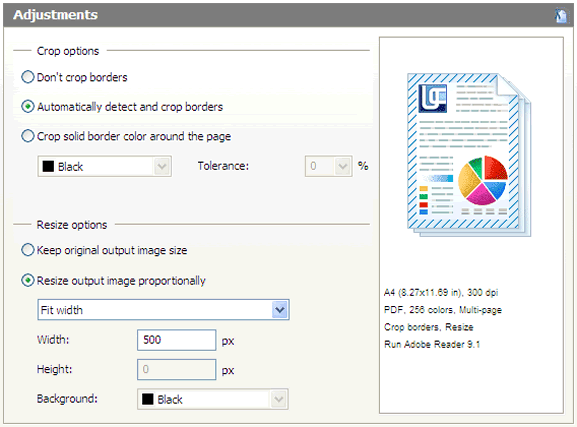
This area helps configure the source document empty border cropping functionality. It uses the following settings:
Don’t Crop. Border cropping disabled.
Automatically Detect and Crop Empty Borders. Automatically crop empty white borders.
Crop Solid Border Color Around the Page. Cropping of borders of a user-specified color.
- Color. Color of borders to be cropped in this mode.
- Tolerance. Maximum tolerance (percentage) with respect to the selected color of the margins to be cropped in this mode.
This section helps resize original document pages. It uses the following settings:
Keep Original Output Image Size. Output file pages are not resized.
Resize Output Image Proportionally. Output file pages are resized based on specified settings.
- Resize Mode. Automatic output page resize mode.
- Fit Width: resize in proportion to the specified width.
- Fit Height: resize in proportion to the specified height.
- Fit Rectangle: resize to specified dimensions.
- Thumbnail: resize to specified dimensions and fill borders with the specified color.
- Width. Page width to be used in Fit Width, Fit Rectangle, and Thumbnail.
- Height. Page height to be used in Fit Width, Fit Rectangle, and Thumbnail.
- Background. Border color resulting from the resize operation in the Thumbnail mode.
By using profiles file processing via Universal Document Converter becomes much more efficient. Profiles imply specific file processing settings introduced by users that can be saved and used at any time. There are several profiles built in the software that can also be easily accessed and utilized.
To use a previously created or a built-in profile, click Load Settings. This will display the standard Windows Open File dialog to select an XML file with the desired profile.
To create a new profile or to edit an existing one, specify all the necessary conversion settings. Then, click the Save Settings button. This will display a standard Windows Save File dialog, and a new or an existing XML file name can be specified.
A PDF file usually contains several pages that can be used as separate files.
To split multipage PDF to single pages, please install Universal Document Converter and follow this manual.
Step 1: Open your document and click Print
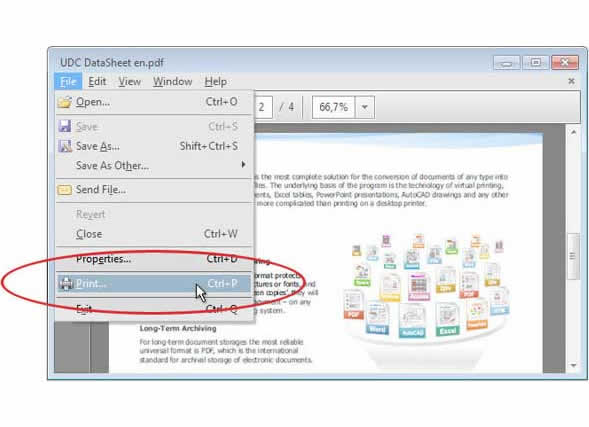
Step 2: Select the Universal Document Converter from the list and click Properties
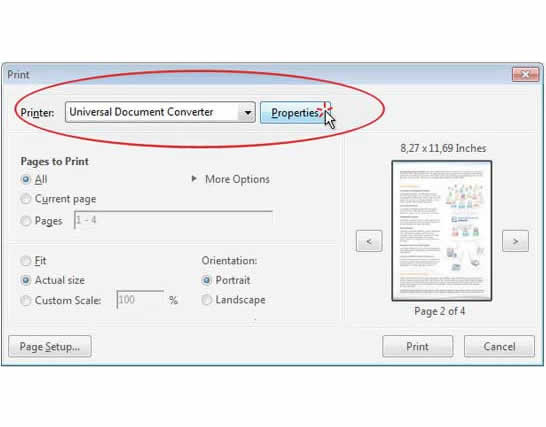
Step 3: Go to File Format. Select PDF Document and Create single-page for each page. Click OK
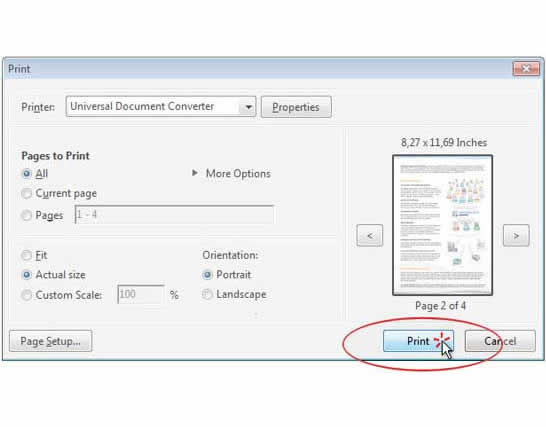
Step 4: Click Print to start spliting of PDF
To split PDF files in batch mode you will need three programs: Adobe Reader (or Adobe Acrobat), Universal Document Converter, and Print Conductor. Print Conductor is the software that has been designed specially for batch processing documents and image files.
- Start Print Conductor and add your PDF files to the list.
- Select the Universal Document Converter printer.
- Click Change Settings.
- Go to File Format. Select PDF Document and Create single-page for each page. Click OK.
- Click Start to begin spliting a number of PDF files:
Universal Document Converter contains public API, code examples and other resources that may be helpful for the software developers. Our resources can be used for similar conversion projects.
This tab is used to configure the output file settings. Configuration is performed using the fields below.
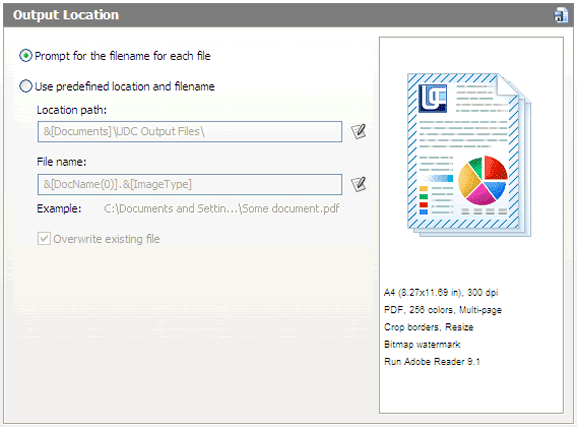
Prompt for filename. In this mode, the software displays a standard save file dialog every time a file is created for manual file and folder name entry.
Use Predefined Location and Filename. In this mode, the software places output files in a specified folder and generates file names automatically based on a predefined template.
- Location Path. The folder to save output files to. It can only be entered under “Use Predefined Location and Filename.” The folder may be entered manually or by way of a standard Windows dialog. It may contain the following macros that the software replaces with actual values at runtime.
- File name. Template used to generate output file names automatically. It may contain the following macros that the software replaces with actual values at runtime.
| Macro | Description | Example value |
| &[Desktop] | Current User’s Desktop | C:\Documents and Settings\User\Desktop |
| &[Documents] | Current User’s "My Documents" Folder | C:\My Documents |
| &[Pictures] | Current User’s "My Pictures" Folder | C:\My Documents\My Pictures |
Macros may be entered manually or selected from a list by pressing  . An example is given next to the name of each macro as an illustration of what the result will look like.
| Macro | Description | Example value |
| &[DocName(0)] | Document Name | My Document |
| &[DocName(1)] | Uppercase Document Name | MY DOCUMENT |
| &[DocName(2)] | Lowercase Document Name | my document |
| &[Page(0)] | Page Number | 3 |
| &[Page(2)] . . . &[Page(6)] |
Page Number of between 2 and 6 Digits | 05 000005 |
| &[ImageType] | Standard Extension for Selected Output File Format | |
| &[ColorDepth] | Numeric value for the bit depth of the resulting image | 24 |
| &[Year(0)] | Current 4-Digit Year | 2009 |
| &[Year(1)] | Current 2-Digit Year | 09 |
| &[Month(0)] | Current Month as Text | February |
| &[Month(1)] | Current Month as 2-Digit Number | 02 |
| &[Month(2)] | Current Month as Roman Numerals | II |
| &[MonthDay(0)] | Current Date | 3 |
| &[MonthDay(1)] | Current 2-Digit Date | 03 |
| &[WeekDay(0)] | Current Day of Week as Text | Tuesday |
| &[WeekDay(1)] | Current Day of Week as Number | 3 |
| &[WeekDay(2)] | Current Day of Week as 2-Digit Number | 03 |
| &[Date(0)] | Current Complete Date | Tuesday, February 03, 2009 |
| &[Date(1)] | Current Complete Date as dd.mm.yyyy | 03.02.2009 |
| &[Date(1)] | Current Complete Date as dd.mm.yy | 03.02.09 |
| &[Hour(0)] | Current Hour in 24-Hour Format | 21 |
| &[Hour(1)] | Current Hour in 12-Hour Format | 09 |
| &[Hour(2)] | AM or PM | am |
| &[Min(0)] | Current Minutes | 31 |
| &[Sec(0)] | Current Seconds | 38 |
| &[Time(0)] | Current Time in hh-mm-ss Format | 09-31-38 |
| &[Time(1)] | Current Time in hh-mm (24-Hour) Format | 21-31 |
| &[Time(2)] | Current Time in hh-mm (12-Hour) Format | 09-31 |
Macros may be entered manually or selected from a list by pressing . An example is given next to the name of each macro as an illustration of what the result will look like.
. An example is given next to the name of each macro as an illustration of what the result will look like.Overwrite Existing File. Enable automatic overwriting of existing files with identical names.
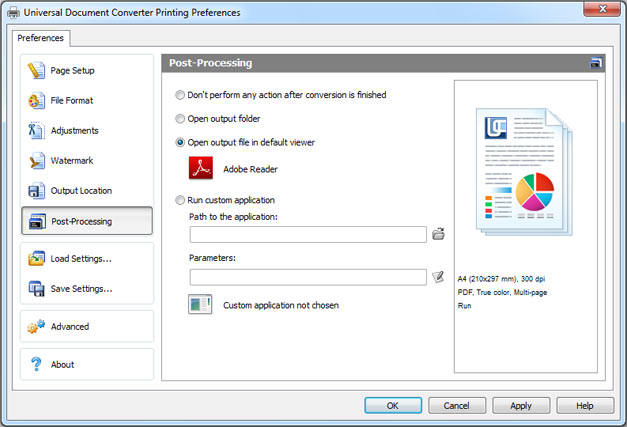
The post-processing feature allows opening any of the files produced by Universal Document Converter with the default viewer that is associated with the particular file type or with any other application that is installed on your computer. You can also execute your own application or batch-file to add any custom processing to each output file.
- In this screenshot you can see how to set Universal Document Converter to open each output file with the default viewer that is associated with a specific file type:
- In the next screenshot you can see how to set Universal Document Converter to open each output file with the user-defined application:
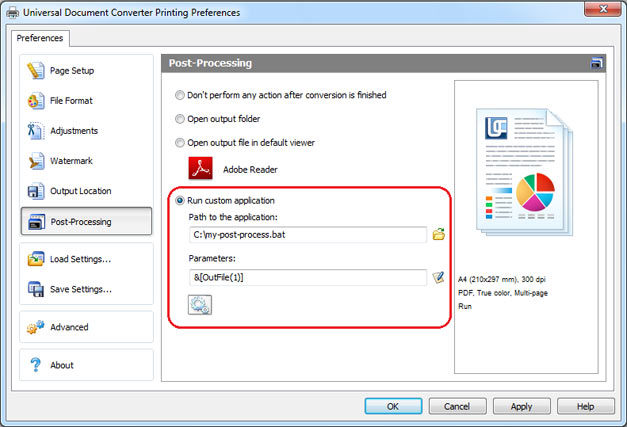
The command line parameters that can be used in the Parameters field include:
- &[OutFile(0)] – Specifies the complete path of the output image file. For example:
“C:\UDC Snapshots\Documents\article.pdf” - &[OutFile(1)] – Specifies the complete path of the output image file in 8.3 format. For example:
“C:\UDCSNA~1\DOCUME~1\article.pdf” - &[Copies] – Specifies the number of copies you set in the application. Universal Document Converter produces only one output file for each page.
Universal Document Converter can be deployed across a company network with any topology. It can be accessed within LAN connecting several computers, or within a large corporate network connecting offices located in different parts of the world. Universal Document Converter is equipped with all the remote-access features. Microsoft Windows Remote Desktop, Microsoft Terminal Services, Microsoft Virtual PC, Citrix® environment and VMWare® Server are supported.
Universal Document Converter toolbar is integrated into Microsoft® Word®, Microsoft® Excel® and Microsoft® PowerPoint® software and allows saving documents as PDF files or image formats, such as JPEG or TIFF via a couple of mouse clicks.
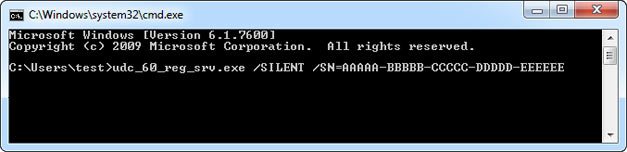
Automatic deployment of Universal Document Converter allows its quick installation on all the PCs. Automatic deployment can take place via the command line by means of the parameters described in this article.
Using Universal Document Converter as a network printer dramatically increases the efficiency in solving complex documentary processing tasks. Universal Document Converter installed on server will be able to process multipage documents, bulky graphics files and drawings without having the users wait for a long time for the task to be completed. Please follow this link to see how to share Universal Document Converter for the network usage.
Terminal Services technology implies the ability of each user to have a personal desktop and user’s area on server and access it from any internet connected computer. Terminal Services technology is equipped with proper security measures to prevent access to it from the third parties thus making the documentary processing secure and stable. Terminal Services technology allows using all the programs, including Universal Document Converter.
Universal Document Converter can be installed on Citrix XenApp server, or can be accessed from a regular computer when the user logs in Citrix environment. Using Universal Document Converter remotely will significantly save time, because the software is installed on server only.
The second solution saves performance of the server, because 50% of the document converting task solved on users’ side. Any modern laptop is powerful enough for the Universal Document Converter requirements. But this trick may be useful if there are lots of users on the Citrix XenApp server.
Folder Mill software is another tool that will fasten the document processing performance. Installed on server, it can monitor the incoming files and convert them to another format preferred within a certain corporation. All the conversion jobs will be done automatically.
Independent software developers can make use of the public API, code examples and automatic deployment system offered by Universal Document Converter. Existing within the Universal Document Converter package resources can become available for other similar projects.
Using Universal Document Converter as a network printer will significantly improve documentary processing efficiency, including complex tasks. Universal Document Converter installed on server will ease multipage documents and large drawings processing. The process can be set up automatically.
- Server settings
- System requirements: Microsoft Windows XP or higher, or Microsoft Windows Server 2003 or higher.
- Install Universal Document Converter. The computer will function as a print server. It will rasterize documents and save them as a PDF file, or as image files. Output files will also be saved on the same computer.
- Go to Devices and Printers folder and share Universal Document Converter. Specify UDC as the network printer name.
- Workstation settings
- System requirements: Microsoft Windows XP or higher, or Microsoft Windows Server 2003 or higher.
- If Universal Document Converter is installed on a workstation, and the version number is different from the one on server, click on Add/Remove Programs to remove the local printer.
- If a workstation has Universal Document Converter installed over the network with a version number different from the one installed on your server, go to Devices and Printers window and press the DEL button.
- Restart the workstation if you have removed older versions of the program.
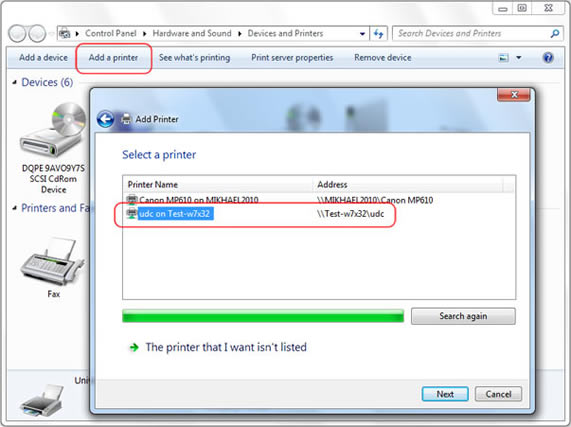
- Install the network printer by pressing Add Printer in Devices and Printers and selecting the UDC network printer located on the server.
- You can now start your work!
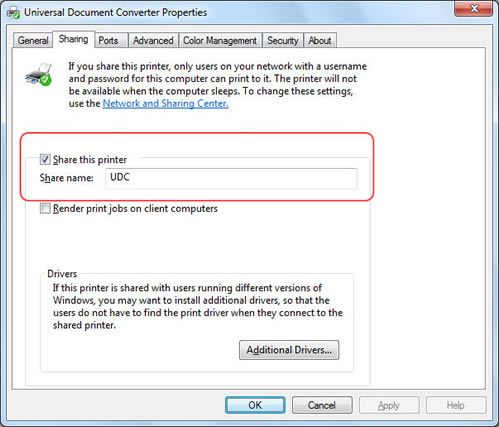
Note! To enable network printing, the users must be logged in on the server. If you need to forbid access on the server you can use the Lock Computer option instead of Log Out.
The Universal Document Converter package includes a public API and code examples that make it possible to integrate the available resources into newly developed software applications. Automatic deployment will significantly speed up the installation of Universal Document Converter on any number of workstations. Software developers can benefit from the Universal Document Converter “conversion kernel” focusing on their own projects implementing there the unique features and solutions offered by our “virtual printer”.
By using automatic deployment of the Universal Document Converter it can be quickly installed on any number of computers within a corporation. Automatic installation can be performed via the command line using the parameters described on this article.
- IUDC: primary API interface providing access to the capabilities of Universal Document Converter
- IPageFormat: provides access to page format settings
- IUDCPrinter: general interface providing control of a Universal Document Converter instance
- IStatus: provides status information on the Universal Document Converter virtual printer
- IProfile: document conversion configuration interface
- IPageSetup: controls output document page settings
- IFileFormats: controls output file format
- IBMP: controls configuration of BMP output files
- IDCX: controls configuration of DCX output files
- IGIF: controls configuration of GIF output files
- IJPEG: controls configuration of JPEG output files
- IPCX: controls configuration of PCX output files
- IPNG: controls configuration of PNG output files
- ITIFF: controls configuration of TIFF output files
- IPDF: controls configuration of PDF output files
- IAdjustments: configures processing of the document being converted
- ICrop: controls cropping of margins in source document
- IResize: control document page resizing during conversion
- IWatermark: controls application of water marks to document pages
- ITextWatermark: controls text water marks
- IPictureWatermark: controls graphic water marks
- IOutputLocation: controls the folder that houses the output files as well as output file names
- IPostProcessing: controls post-processing of documents being converted
- IAdvanced: controls Universal Document Converter’s advanced capabilities
Solutions for converting documents, drawings, charts and presentations based on Universal Document Converter API usage for different programming languages:
Microsoft Word to PDF
Microsoft Powerpoint to JPEG
Adobe PDF to JPG
Microsoft Powerpoint to JPEG
Adobe PDF to JPG
Microsoft Excel to PDF
Autodesk AutoCAD to PDF
Autodesk AutoCAD to PDF
Microsoft Outlook to PDF
Microsoft Visio to TIFF
Microsoft Visio to TIFF
- Folder Mill. Usually Folder Mill is installed on the office server and monitors the folders used by the company employees. Folder Mill can follow the rules specified for each incoming file: whether or not it should be converted to another format. Thanks to this, each employee needs to do only two things: copy the file that he/she needs to convert into his/her personal network folder and get the converted document from another folder. No conversion needs to be performed manually.
- Print Conductor is a simple batch printing utility. If you regularly have to open and print a large number of files, this elegant tool can be a real timesaver. Once you tell it which files to print, Print Conductor automates the rest of the process.
- 2Printer is the command line utility that can automate printing documents and image files. The command line interface enables the users to create batch-files for automating their specific printing needs. This tool may be included in your Windows Task Scheduler to automate printing process on your computer. 2Printer is compatible with any mechanical printers connected to a computer or accessed via the local networks, and also virtual printers like Universal Document Converter.
- Operating System : .
Universal Document Converter does not print for DOS applications. - Processor : Intel Pentium III 500 MHz or above.
- RAM Memory : 512 MB or more RAM.
- Storage : 40 Mb for the program files, 100 Mb for output files, 100 Mb of system disk space for a swap-file.