 Business & Finance
Office Suites & Tools
DocuFreezer Description
DocuFreezer

Author Company: fCoder SIA
DocuFreezer | Batch convert Microsoft Word, Excel and PowerPoint to PDF, Adobe PDF to JPG, Word to PDF, TIFF to JPG, HTML to PDF, XPS to PDF and Plain Text to PDF! ... ...
File Size:
OS:
License: - Time Limit, free to try, to buy.
File Size:
OS:
License: - Time Limit, free to try, to buy.


DocuFreezer
Convert Multiple Files to PDF, JPG, PNG, TIFF, TXT
Batch convert Microsoft Word, Excel and PowerPoint to PDF, Adobe PDF to JPG, Word to PDF, TIFF to JPG, HTML to PDF, XPS to PDF and Plain Text to PDF! DocuFreezer is a simple file conversion software & offline batch converter for Windows which can save multiple files to PDF or images at once.
Batch convert files with DocuFreezer in three easy steps!
DocuFreezer is a desktop application that converts your documents and images to PDF, TXT, JPG, TIFF, or PNG formats, “freezing” the look of the input documents and protecting them from any amendments. No matter which device the document will be displayed on, it will look exactly the same as the original.

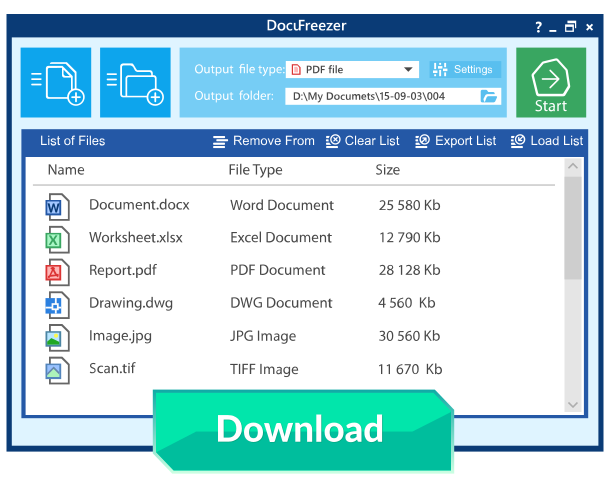
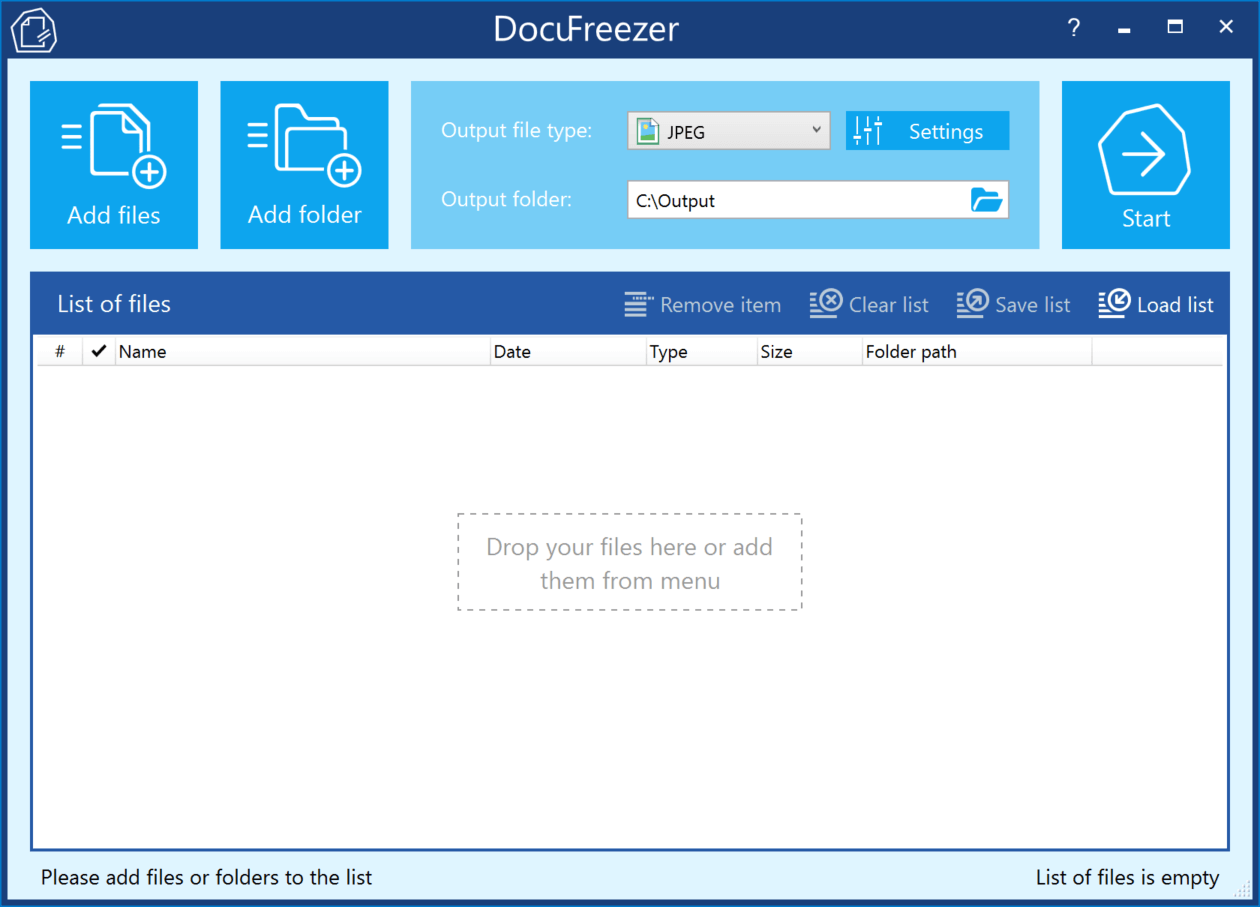
The program interface is intuitive: drag-and-drop your files, select the output format, and click Start. You can add several files, entire folders, RAR, ZIP, and 7ZIP archives with documents directly on the main window. DocuFreezer keeps it simple — you can use the default settings to get great results. However, you can adjust many things by yourself with numerous settings and options.

DocuFreezer helps you easily convert your files and protect them from being modified. After conversion, the output files will keep the original files’ structure, page layout, text formatting, fonts, and hyperlinks. DocuFreezer can also preserve the original file names, metadata, folder structure, attachments, and color attributes of source files.

If you need to archive documents, save them as a backup, or if you want to provide a non-editable copy to someone, DocuFreezer will help you convert almost any document to PDF, JPG, TXT, TIFF. This will let you have your files accessible on any modern device, keep them safe and open several years later.

DocuFreezer software is designed to batch process documents and images quickly and automatically via drag-and-drop interface. Add dozens or even hundreds of documents to the list and have them converted in one go without any user attention. You no longer need to open each file and convert it by yourself! Besides, you can configure page rotation, page range, filter mask, and post-processing actions for faster workflows.

DocuFreezer supports over 80 input file types (and the number is growing!), including all popular types of documents and images such as Adobe PDF files (.PDF), Microsoft Word documents (.DOC, .DOCX), Microsoft Excel worksheets (.XLS, .XLSX), Microsoft PowerPoint presentations (.PPT, .PPTX), plain and rich text files (.TXT, .RTF), XPS files (.XPS, .OXPS), AutoCAD files (.DWG, .DXF), and more.
With DocuFreezer, you can add several PDFs to combine and merge them into one multi-page document. Or create a merged PDF from various files like JPG, XPS, HTML, DOCX, TIF. Or split a large PDF to extract all pages into many single-page files. Moreover, you can add new pages to an existing PDF, e.g., add a cover page to the beginning or an additional page to the end of the document. Merge and split options are available for PDF and TIFF.
Many programs, including Microsoft Word, OpenOffice, Excel, PowerPoint, and Adobe Acrobat, allow you to export documents to PDF format without requiring any third-party applications. This is a convenient option when you only have a few documents to process. However, if you have dozens of files to convert, the task can become tedious. You will need to handle each document individually: open the file, save it as a PDF, close the document, and repeat the same steps for the next file. This process can be very time-consuming.
DocuFreezer is designed specifically for processing a large number of documents or images that need to be changed to other formats. Try our software and see how much time you can save!

The trial version of DocuFreezer is available for free download and may be used for evaluation purposes.
The commercial license is required if you need DocuFreezer for business needs. Commercial version costs $49 and allows customers to install and use DocuFreezer under one Windows user account. If you purchase 5 or more licenses, you will get a discount.
Download DocuFreezer for free and you can convert:
You can also:
- MS Word DOC to JPG / TIFF
- HTML to JPG / PNG
- JPEG to TIFF / TIFF to JPEG
- PDF to JPG / TIFF / TXT
- Publisher PUB files to JPG
- MS Word to TIFF
- TIFF to JPEG / PNG
- ODF / ODT to JPG
- PPTX / PPSX to PDF
- TXT to JPG
- HEIC to JPG / PNG / TIFF
- Convert any number of files to PDF or raster images
- Convert email files with attachments in different ways
- Merge, split, and combine PDF / TIFF files
- Add text, image, or barcode watermark to document pages
- Convert CAD files into a multipage PDF or separate pages
- Set color space (color scheme), DPI, and image quality
- Set filename of output multipage PDF / TIFF
- Save and load file lists for regular use
- OCR scans, images into TXT or searchable PDF
- Set page rotation or auto rotation (Portrait/Landscape)
- Resize output images or PDFs
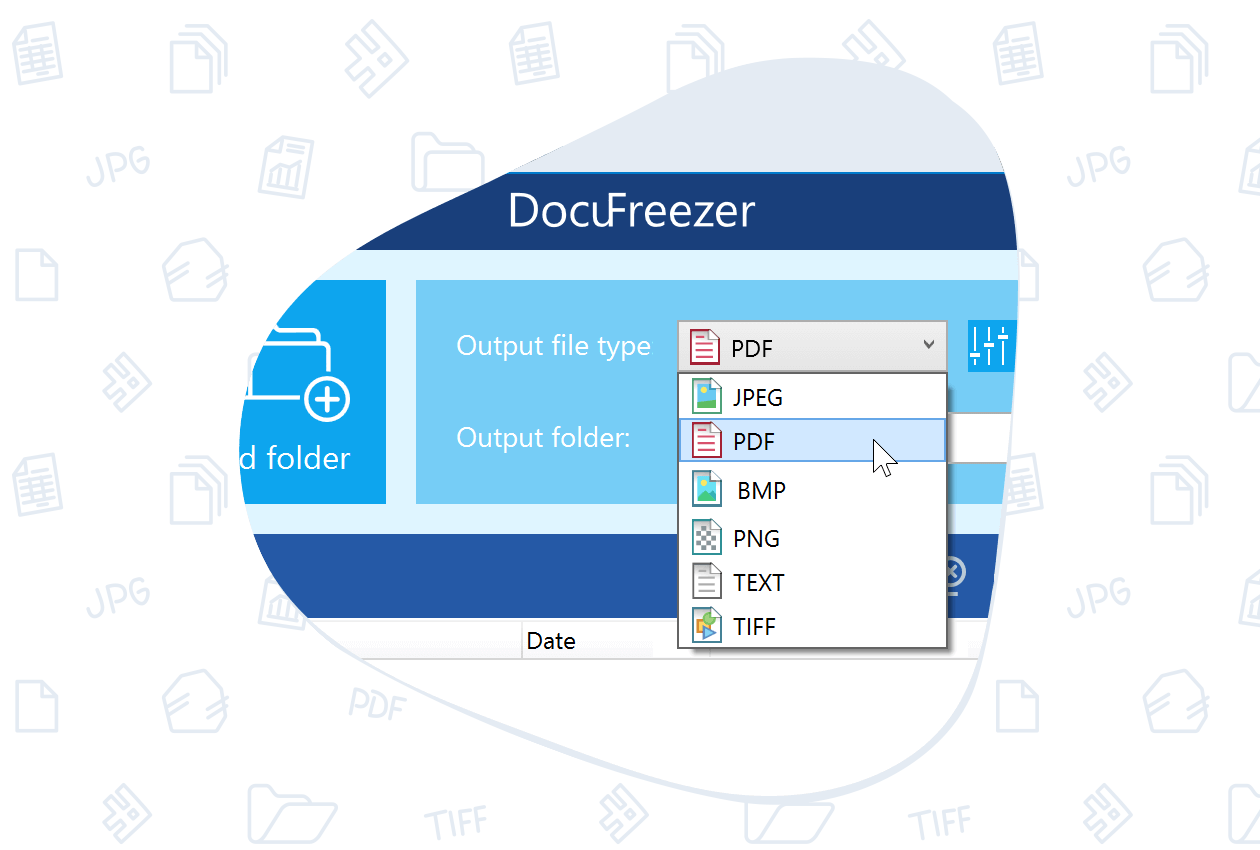
DocuFreezer allows you to convert a variety of file types in batches. It supports most popular images and documents, including Office (Microsoft 365) documents such as Word DOC, DOCX, Excel worksheets like XLS, XLSX, CSV, PowerPoint presentations such as PPT, PPTX, Microsoft XPS files including XPS, OXPS. Besides, DocuFreezer supports CAD files such as DWG, DXF, MathCAD MCDX, MCTX, Outlook email files like EML, MSG, PST, OST, Microsoft Visio files such as VSD, VSDX, HTML web pages.
Output file types:
- PDF (Portable Document Format)
- TXT (Plain text)
- BMP (Bitmap image)
- JPG (JPEG image)
- PNG (Portable Graphics Format)
- TIFF (Tagged Image File Format)
- Additional output formats (processing them may have limited functionality): BMP, DOCX, GIF, XPS, XLSX, ODS, DXF, CSV
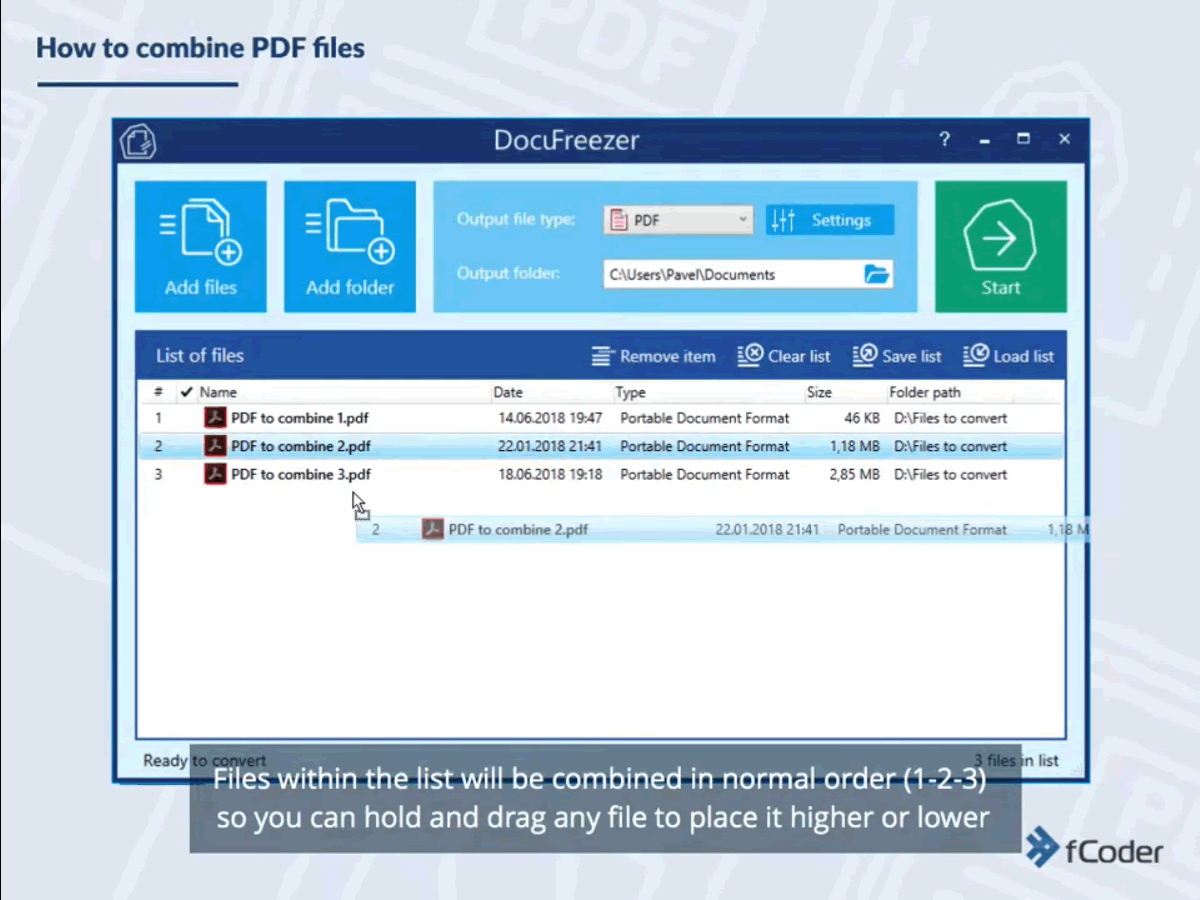
Want to join several PDFs together or various files into a single multipage document? DocuFreezer can combine & merge several PDF documents to create a multipage file containing them all. You can do it using Merge into one PDF option. Conversion of multipage TIFF to PDF and vice versa is also possible.
Set output file name
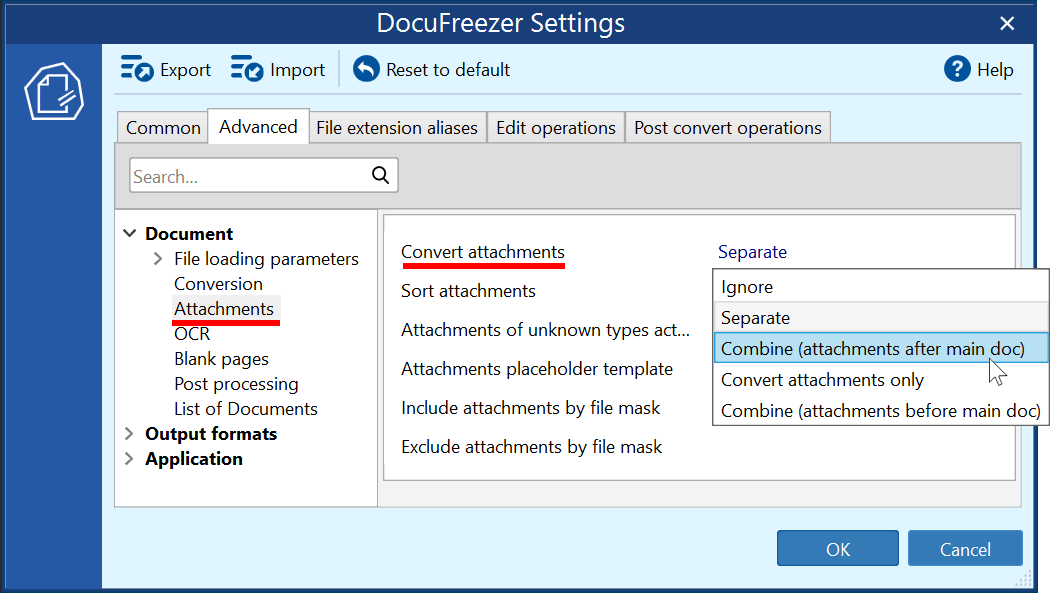
DocuFreezer can merge various files into PDF or TIFF as well as split multipage documents and add new pages to existing files.
Add new pages to existing documents
Split multipage documents into pages
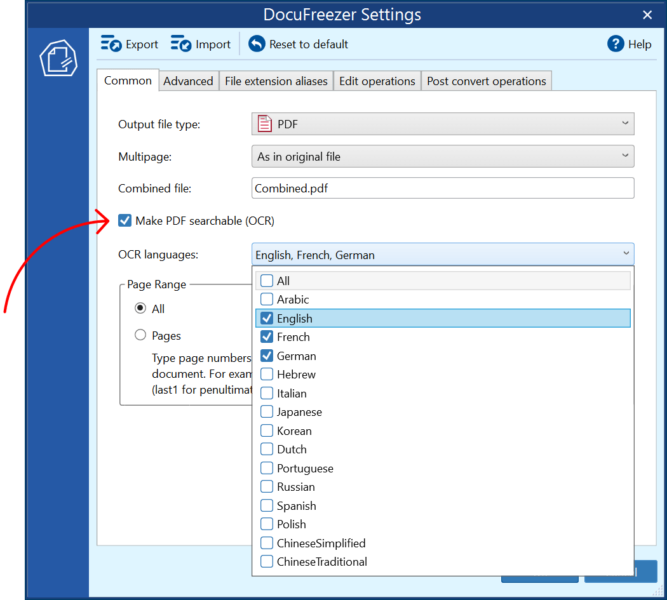
How to recognize text in PDF, scanned images, and other documents? DocuFreezer can be a PDF converter and OCR program at the same time. Convert different types of documents, such as scanned documents, PDF files, or images captured by a digital camera into editable and searchable data in PDF or TXT.
DocuFreezer can OCR files – render them using Optical Recognition Technology. OCR languages include most European and some other languages. The output files will have recognized text, which can be copied, edited, and used somewhere else. Using OCR, you can export your scans, documents, or images into:
- Plain TEXT files: TXT
- Searchable PDF: PDF
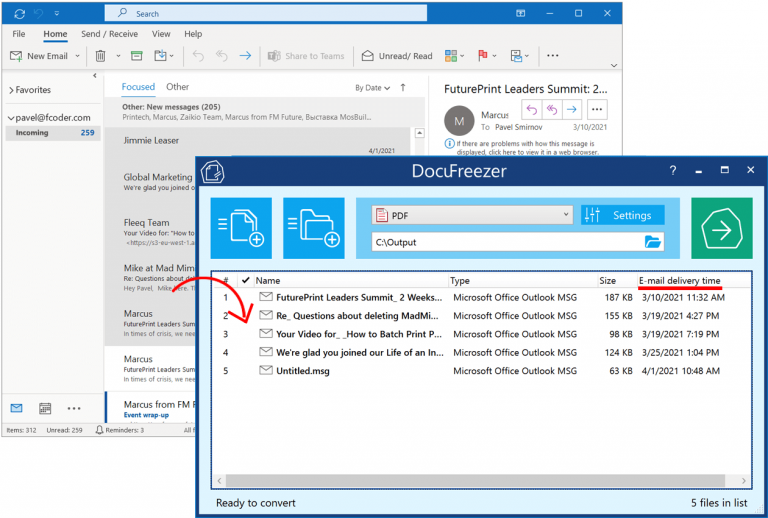
Save email messages such as EML, MSG, including attachments and email headers to PDF or TIFF for archiving or other purposes. You can:
- Drag'n'drop message files from Microsoft Outlook directly to the List of Files
- Sort Outlook message files by E-mail delivery time in the List of files
- Sort attachments in the output folder
- Define custom paper size for Outlook MSG and EML files
- Create a multipage PDF containing both email itself and its attachments
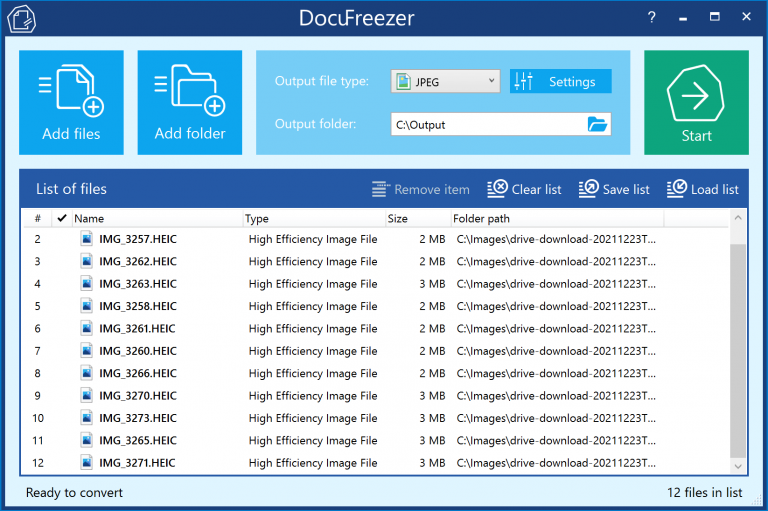
Convert Apple HEIC (.heic, .heif) photos to JPG, PNG, or TIFF quickly without compromising image quality. This allows you to easily save all your macOS and iOS photos in widely used JPEG or PNG formats. You can convert multiple files at once, with no limit on the number of files per session.
 Additional software is required. You'll need either ImageMagick or HEIC/HEVC codecs installed to process HEIC files.
Unlike other tools, DocuFreezer ensures 100% data security by processing everything locally – nothing is uploaded to the Internet.
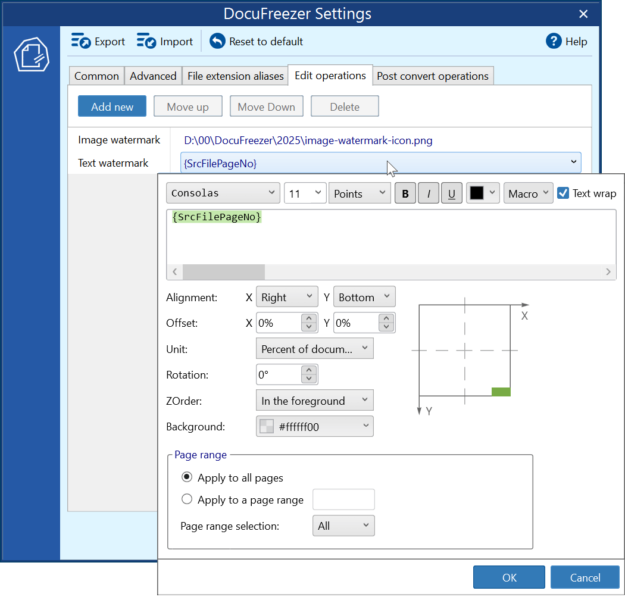
Need to add a QR code, semi-transparent logo, or some text? Use flexible settings to add watermarks to all or a range of pages via the Edit operations tab. When using Text watermark, for example, you can take advantage of built-in macros that allow you to automatically insert various data, such as:
- Page numbers
- File date and time
- Original document name
- And other document-related data
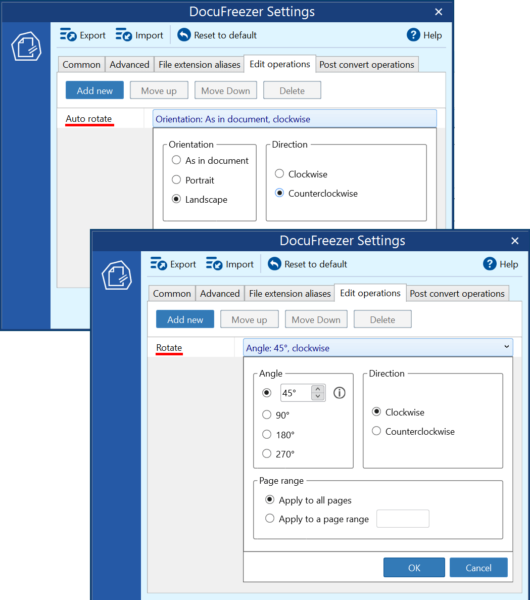
You can set automatic image or page rotation or auto-rotation on the Edit operations tab.
The difference between rotation and auto-rotation is that for Rotate pages, you set a custom angle. In contrast, the Auto rotate pages setting detects page dimensions (width and height) to turn images/pages automatically – to Portrait or Landscape.
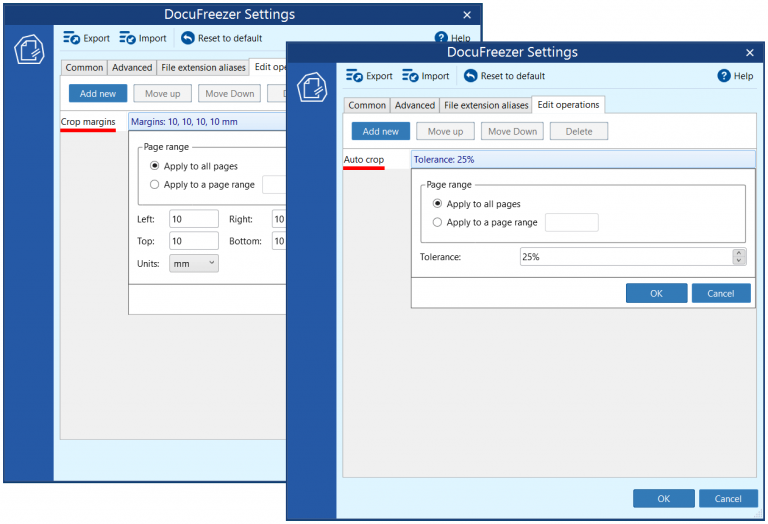
Besides rotation and watermarking operations, DocuFreezer has a cropping feature. It allows you to remove blank margins if they are not necessary. You can set custom dimensions yourself (Crop margins, Crop rectangle) or let the program define white space automatically (Auto crop).
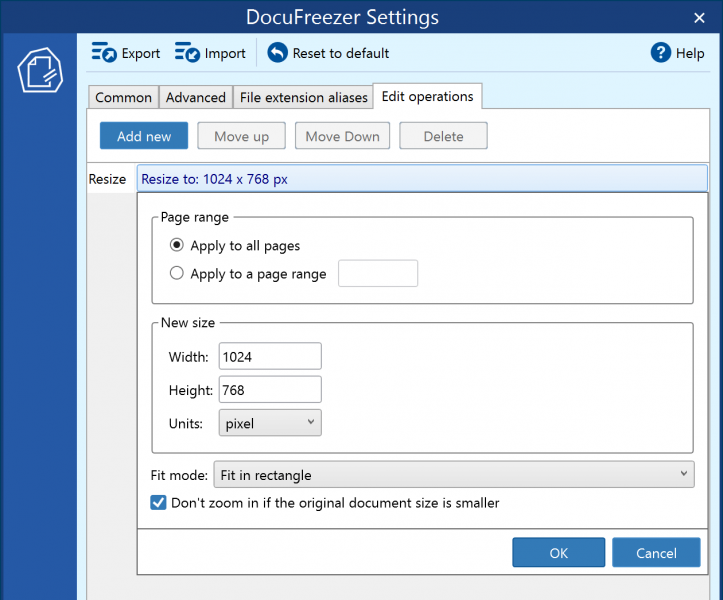
DocuFreezer allows you to change the size of output images or documents during file conversion. Just add the Resize operation and specify a new size in pixels, millimeters, centimeters, inches, or percent.
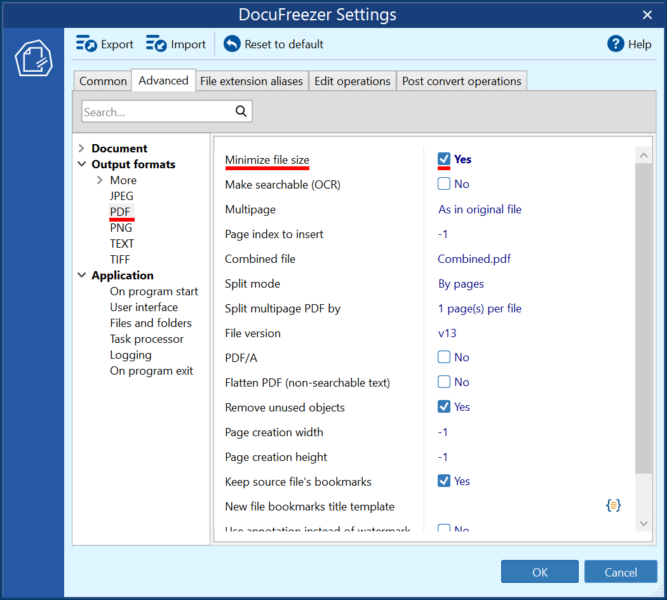
The Minimize file size setting allows you to reduce the size of output PDF files. With this feature enabled in the Advanced Settings > Output formats > PDF, the level of compression is about 30% (depending on the document's contents). This feature works for PDF, XPS, and DOCX files (selected as output format) only.
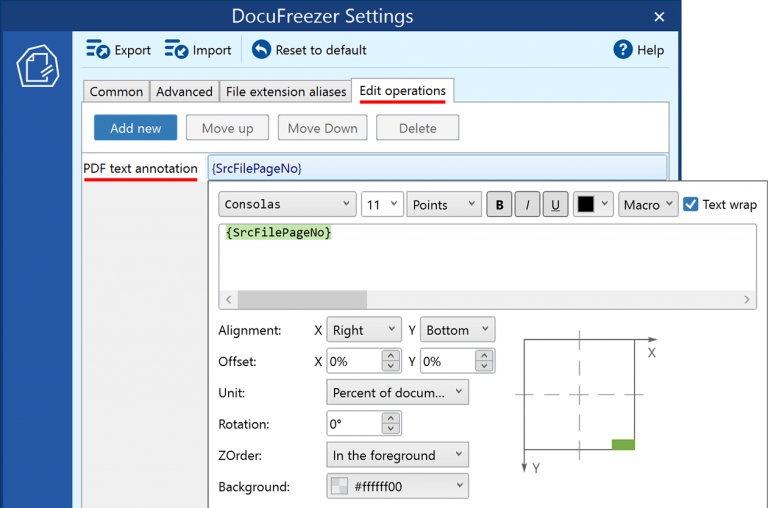
Quickly add text annotations to PDFs without altering the original content using the PDF text annotation operation. This feature allows you to insert text into output PDF files, adjust its position on the page, choose font styles, and use macros or plain text.
Unlike Text watermark, which is an alternative method, adding annotations doesn't involve re-rendering document pages or changing the document structure. This makes it a faster way to incorporate text into output PDFs.
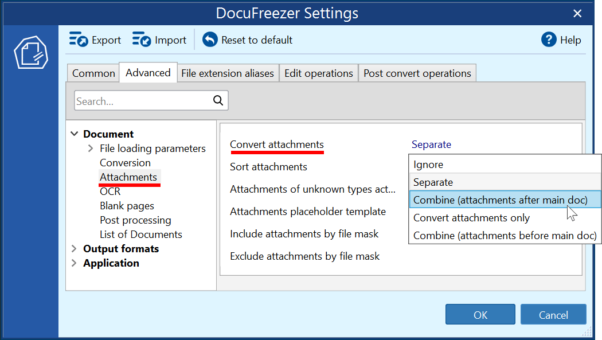
In the Advanced Settings menu, you can specify how DocuFreezer should handle files with attachments. For example, if you have PDFs or emails in EML or MSG file format with attached files, you can set a rule to ignore the attachments or the main documents, convert attachments/documents only, or convert emails plus attachments to one multi-page PDF.
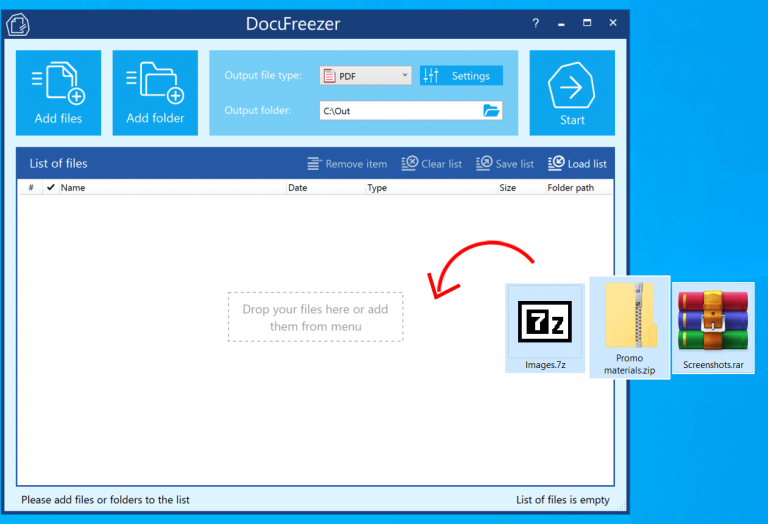
No need to extract your files compressed by WinRAR (.rar), WinZip (.zip), 7-ZIP (.7z), or other archiving software before adding them to the DocuFreezer's List of files.
Simply add an entire archive to the list and click Start. The archive contents will be automatically extracted and added to the List of files.
Supported archive formats include:
- RAR
- ZIP
- 7-ZIP
- GZIP
- and more
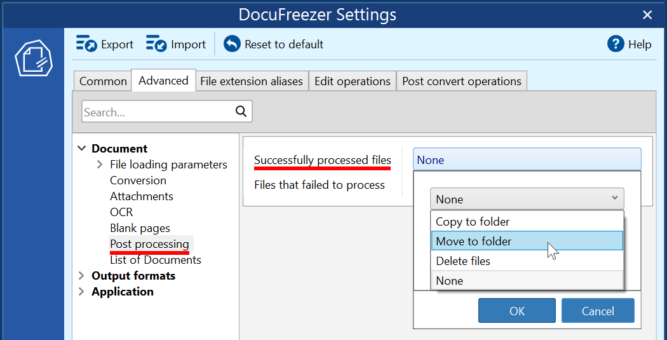
If you want to move, copy, or delete the source files after conversion – DocuFreezer has post-processing actions for this job. It will automatically copy or move them to a user-defined folder or delete them when the batch conversion session is complete!
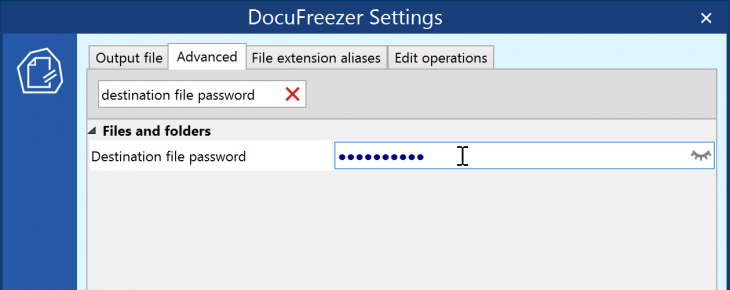
If your source files are password-protected, no need to remove protection before conversion. Just enter their password(s) in DocuFreezer next to the Password list setting. If your files are secured with different passwords, you can specify them too, each one on a separate line.
Protect the converted files using a password
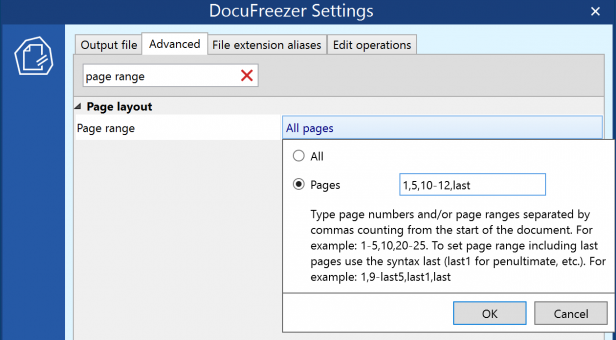
If you don't need all pages of documents to be converted, change the Page range setting. You can enter page numbers and/or page ranges separated by commas counting from the document's start. To select pages from the end of the document, use the syntax last.
The default output resolution of 300 DPI provides decent quality for most documents. However, you can control the Rasterization resolution value (DPI, Dots Per Inch) – it affects the quality of output files when they are converted. Decreasing the DPI can make them smaller in size, but look worse. You can check the quality-vs-file-size tradeoff by converting one file as a test.
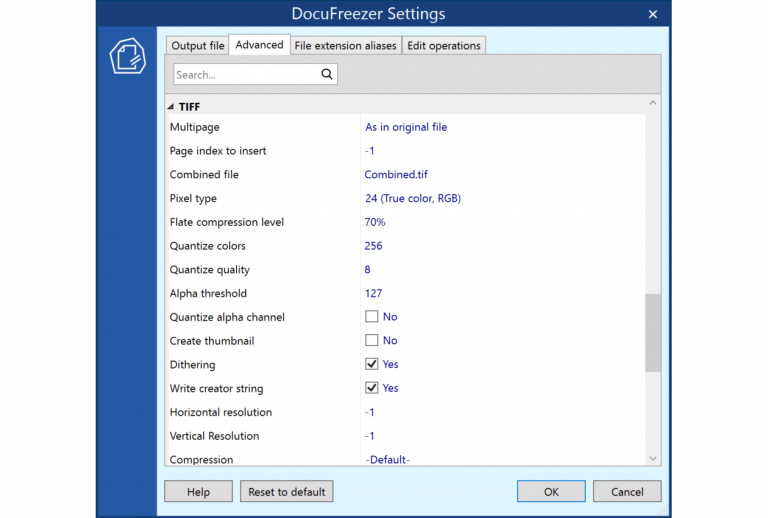
Configure parameters for image file types: JPEG, TIFF, PNG, and GIF
- Color space: True color CMYK, RGB, RGBA, Grayscale, Monochrome
- Compression mode: Baseline, Progressive, Lossless
- Dithering, sampling, quality, and more
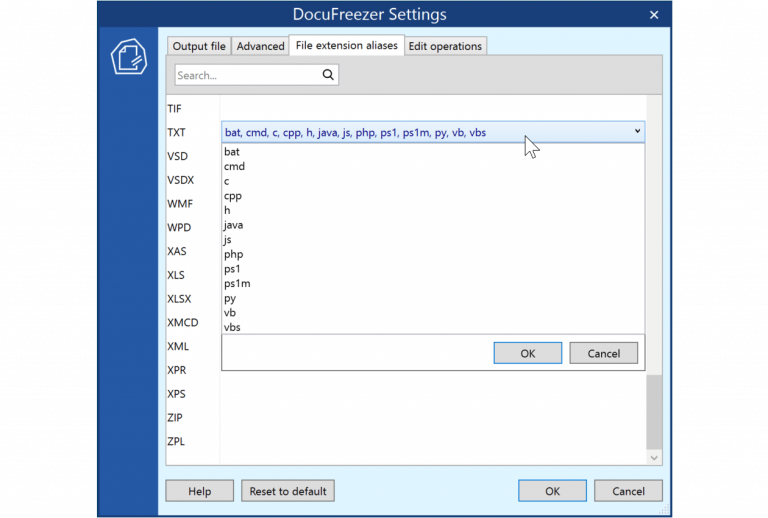
If you want to add certain file types that are not in DocuFreezer's supported formats list, there still may be a way to process them. You can enter your file extension next to an existing file format extension in the File extension aliases tab.
For example, if you have [filename].invoice files that are structurally PDF, just associate your *.invoice files with PDF format.
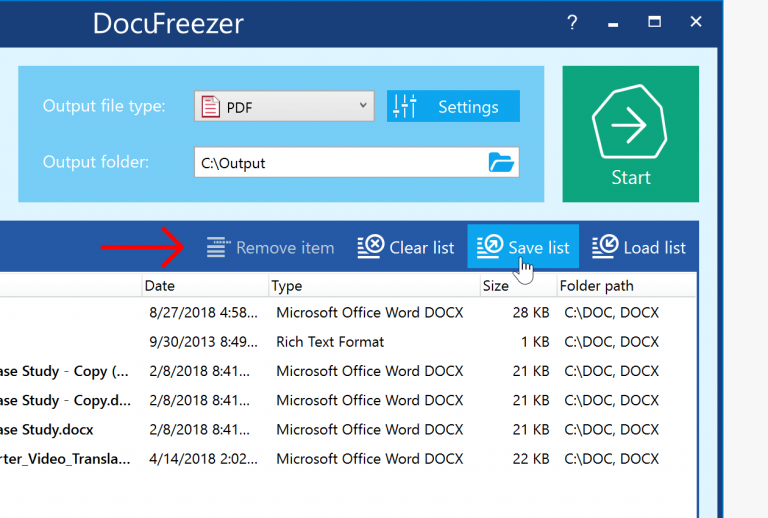
DocuFreezer can save and load lists of files. Just add your files to the program's list, arrange them in the proper order and click Save list. DocuFreezer will create a separate file – File List (*.flist), which can be used in the future by clicking the Load list button. You can import, export, clear lists, and remove items from the lists.
To create a new List, you can add files in different ways:
- Drag-drop files onto the main window
- Add an entire folder with files
- Add only files of a specific extension (e.g. *.jpg only)
- Import a list of files by selecting an Excel spreadsheet (XLS, XLSX, CSV) by clicking the Load list button
- And more
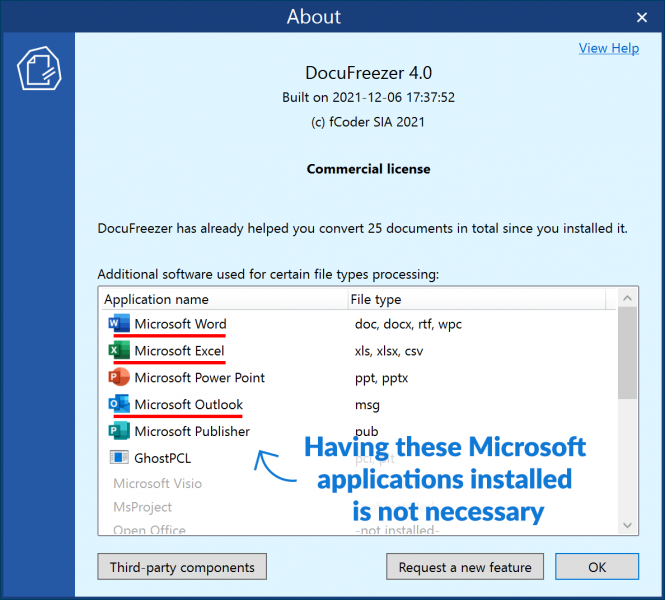
Though some file types require additional software, DocuFreezer can convert most types of files on its own. For example, it can handle popular Office documents using internal engine only:
- XLS, XLSX files without Microsoft Excel installed;
- DOC, DOCX, RTF files without Microsoft Word installed;
- MSG, EML files without Microsoft Office Outlook or Word installed.
- Operating System : .
- Processor : Intel Core i3 or AMD Athlon II X2 processor or faster processor.
- RAM Memory : 8 GB RAM or more.
- Storage : Free space on hard drive: 412 MB.
- Required Software : Microsoft NET Framework 4.0, additional software for specific file types.