 Business & Finance
Office Suites & Tools
2PDF Description
2PDF

Author Company: fCoder SIA
File Size:
OS:
License: - Time Limit, free to try, to buy.


2PDF
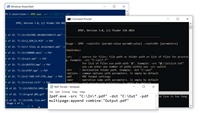
Command Line PDF Converter


Command Line
Extract PDF Pages

(Text or Image)

in PDF

using OCR

or via Script
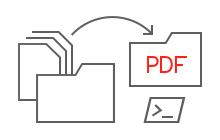
- Command-line application (cmd.exe, PowerShell)
- Windows Task Scheduler
- BAT (batch) file or VB script
- your own software or existing source code
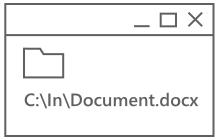
- Path to a single file
- Folder path where files are located
- List of files (TXT, XLS, XLSX, CSV)
- Web address (URL)
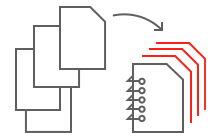
Example:
2PDF.exe -src "C:\In\*.*" -dst "C:\Out" -pdf multipage:append combine:"my multipage.pdf"
Example:
2PDF.exe -src "C:\In\*.*" -dst "C:\Out" -pdf multipage:split split_step:3
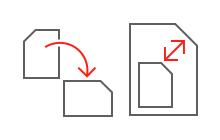
Example:
2PDF.exe -src "C:\In\*.*" -dst "C:\Out" -oper autorotate orientation:portrait direction:ccw
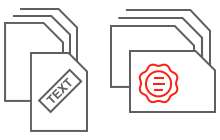
 What's the difference between Text watermark and Text annotation?
Both of these operations have similar functionality. However, text annotation is newer and may work faster since it doesn't require re-rendering the content of PDF pages when inserting the text. If you're unsure which one to choose, we suggest using Text annotation.

Example:
2PDF.exe -src "C:\In\*.*" -dst "C:\Out" -oper watermark image:"C:\Watermark.png"
2PDF.exe -src "C:\In\*.*" -dst "C:\Out" -oper textannotation text:"Confidential" halign:left valign:top
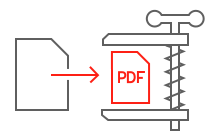
Example:
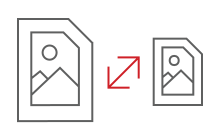
2PDF.exe -src "C:\In\*.*" -dst "C:\Out" -pdf min_size:yes
Example:
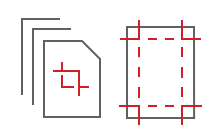
2PDF.exe -src "C:\In\*.*" -dst "C:\Out" -oper crop method:margins left:10 top:5 right:10 bottom:5 units:mm
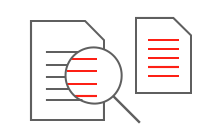
Example:
2PDF.exe -src "C:\In\*.*" -dst "C:\Out" ocr:yes ocr_lang:German

Example:
2PDF.exe -src "C:\In\*.*" -dst "C:\Out" -options dstpwd:123456
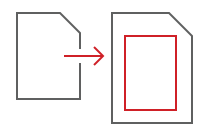
Example:
2PDF.exe -src "C:\In\*.*" -dst "C:\Out" -oper paint cmd:drawrect rect:"150 200 500 500" pen_color:"r:0,g:0,b:0,a:255" brush_color:"r:0,g:0,b:0,a:0" pen_width:4
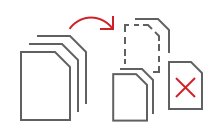
Example:
2PDF.exe -src "C:\In\*.*" -dst "C:\Out" -postproc passed:copy passed_dir:"C:\Done"
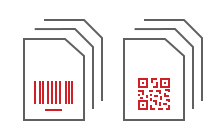
To access 2PDF Settings, run the command:
2PDF.exe -ini



Besides, using the keep_bookmarks parameter you can control whether bookmarks from the source file are preserved in the output documents.


- Download and install 2PDF
- Use Win+R hotkey or click Start button on the bottom-left corner of your Windows Desktop
- Type cmd to open the Command Prompt and press Enter
- Enter the command line:
2PDF.exe -src "C:\Input\*.*" -dst "C:\Output"
- Press Enter
- Open Notepad and create a new text file in it
- Enter Visual Basic Script code like this:
Set objShell = WScript.CreateObject("WScript.Shell")
objShell.Run """2PDF.exe"" -src ""C:\In\*.*"" -dst ""C:\Out""", 1, True
Set objShell = Nothing - Save this file as a Unicode text file. For example: Test.txt
- Rename Test.txt file to Test.vbs
- Double click Test.vbs file to start the conversion
"C:\Distr\2PDF-trial-setup.exe" /SILENT
"C:\Distr\2PDF30-commerc-setup.exe" /SILENT /SN=AAAAAA-BBBBBB-CCCCCC-DDDDDD
- Operating System : .
- Processor : Intel Core i3 or AMD Athlon II X2 processor or faster processor.
- RAM Memory : 2 GB RAM or more.
- Storage : At least 530 MB.
- Required software :
- Microsoft .NET Framework 4.0 (or higher)
- Command-line interface such as Windows Command Prompt (cmd.exe) or Windows PowerShell (v5, 6, or 7)
- Administrator rights are required during installation and software activation