 WinX DVD Copy Pro
- 1:1 Copy DVD to computer Windows 11/10 in ISO image, VIDEO_TS folder, MPEG2.
- 1:1 Copy DVD to DVD on Windows 11/10. 5 minutes only.
- Copy DVDs protected by region codes, RCE, CSS, UOPs, APS, ArccOS, Disney, etc.
- Burn ISO/VIDEO_TS folder to DVD. Mount ISO to virtual drive.
How to Copy a DVD to DVD/Computer on Windows 10/11/8/7
Many people are seeking a reliable method to copy DVDs to DVD/computer:
1. "I am searching for a DVD copying tool that can copy all my DVDs to my computer so that I can easily play them later. It is essential for me to achieve the highest quality lossless image output." - Rmichell
2. "Occasionally, I need to copy DVDs that have slight or severe scratches. I have tried DVD Shrink, but it stops at a certain point. Clone DVD doesn't work either. Is there an application that can copy scratched DVDs?" - Rockstar452
3. "I used Imgburn to copy a DVD to another DVD on Windows 10, but it came bundled with adware and malware. I spent nearly an hour copying a DVD that cannot be played. Are there any other DVD copying programs for Windows 10?" - JoshYoung
Here, we will introduce a versatile DVD copy software that can copy DVDs (including copy-protected DVDs) to another DVD and download DVDs to your computer's hard drive on Windows 11, 10, 8.1, 8, and 7.
Part 1. Free Download the Best DVD Copy Software for Windows 10/11/8/7
WinX DVD Copy Pro is an expert in copying DVDs to DVD/computer on Windows 11/10/8/7. It offers 9 DVD copy modes to copy DVDs to computer with original quality or clone DVD to another blank DVD on Windows 11/10/8/7:
- It's able to copy DVDs with all DVD encryptions such as oversized 75GB, 99 titles, bad sectors, fake playlists, region codes, scrambled content, etc. It can copy DVDs that Imgburn, DVD Shrink, and other DVD copy software for Windows 11/10 won't support.
- It's able to copy DVD to DVD with one single DVD drive or multiple DVD drives.
- It's able to copy DVDs to Windows 11/10 computers in ISO image/DVD folder with original menu, all subtitle tracks, audio tracks, and original quality. The whole process only takes about 15 minutes.
- It's able to copy DVD to a single MPEG2 file with original video tracks and 5.1 channel AC3/DTS Dolby audio, extract DVD video or audio, mount ISO as virtual DVD drive.
It combines the features of a DVD decrypter, DVD copier, DVD cloner, DVD burner and ISO mounter. Download the all-in-one DVD copy software for Windows 10/11 and easily copy a DVD to DVD/computer/USB/hard drives on Windows 10/11.
 Get a $14 coupon code for WinX DVD Copy Pro Lifetime Version [Time-limited]
Part 2. How to Copy a DVD to Another DVD on Windows 10/11/8/7
When it comes to making a copy of a DVD with the original quality, many people choose to clone the DVD to another DVD.
Step 1. Choose "Clone DVD to DVD" mode under Full DVD Disc Backup category.
Insert the original DVD disc into your computer's optical drive and open the DVD copy software on your Windows 11/10 computer. Then click "Clone DVD to DVD" from the left menu list.
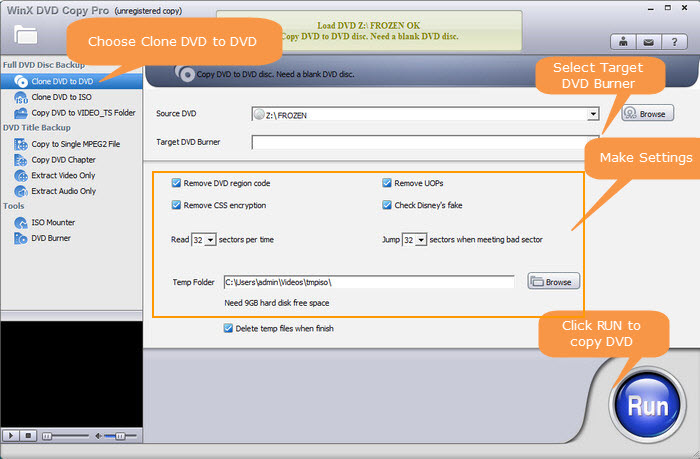
Step 2. Select the Source DVD and Target DVD Burner
WinX DVD Copy Pro will auto detect the inserted DVD disc. If your computer has two optical drives, you can insert the source DVD and a blank DVD simultaneously. However, if your computer has only one DVD drive, you should first insert the source DVD.
Note:
1) Please make sure to tick Remove DVD Region Code, Remove CSS encryption, Remove UOPs, and Check Disney's Fake options if you try to copy a commercial protected DVD.
2) If you need to copy a scratched DVD on Windows 11/10/8/7, WinX DVD Copy Pro is an excellent option. It has a significant advantage of copying DVDs sector-by-sector. This means it can recover most bad sectors or skip them to ensure a smooth DVD copy without any freezing issues. While some DVD data may be lost in the areas with bad sectors, the data from the remaining sectors will be preserved. For the best results when copying a damaged DVD, select the option to jump 32 sectors.
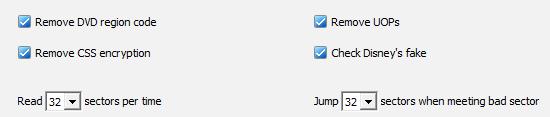
Step 3. Preset the Temp Folder.
Click the "Browse" button to select a folder on your Windows 11/10/7 computer where you want to temporarily store the ISO image file cloned from the DVD. Ensure that the temporary destination folder has sufficient free space, at least 9GB. You can choose to enable the option "Delete temp files when finished" to automatically remove the temporary files after the DVD copying process is completed.
Step 4. Click "Run" button. Here are two situations:
If you have a single DVD drive, WinX DVD Copy Pro will first copy the DVD on your computer Windows 11/10/7 as an ISO file.
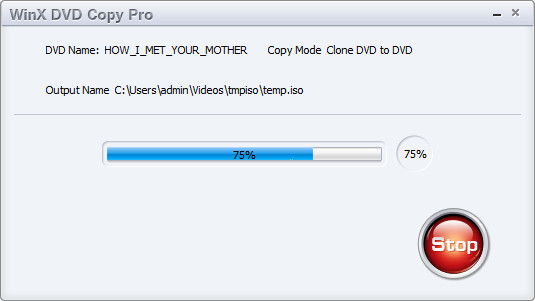
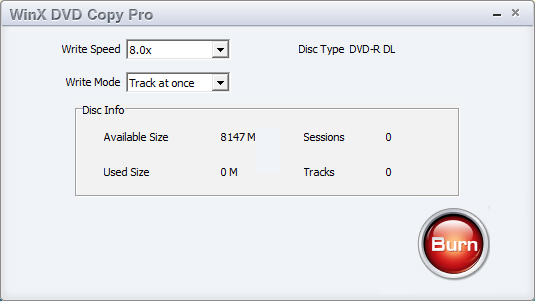
When an ISO image is created, you will be prompted to insert a blank disc. Remove the source DVD and insert a blank new DVD into the optical drive. Then, click on "Burn" to begin copying the ISO file to the new DVD. This is the process for copying a DVD to another DVD on Windows 11/10 using a single DVD drive.
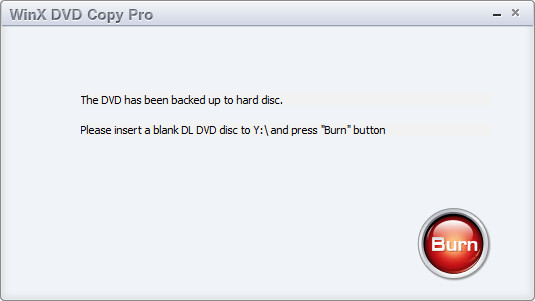
If you have 2 rewritable DVD drives and have inserted both source DVD and blank DVD, WinX DVD Copy Pro will auto analyze your DVD drive data. And you just need to click the "Burn" button to start copying your DVD to another DVD directly. You could stop the process at any time.
Part 3. How to Copy a DVD to Windows 11/10 Computer, Hard Drive, USB...
Besides copying a DVD to another DVD on Windows 11/10, WinX DVD Copy Pro can also create a digital copy of your DVD on computer hard drive, USB flash drive, clouds, etc. for a safe backup. Now let me show you how to do this.
Step 1. Insert the original DVD disc into your computer's optical drive and open the DVD copy software on your Windows 11/10 computer. Then choose a desired DVD copy mode. To copy a DVD on Windows 10/11 computer, you can choose Clone DVD to ISO, Clone DVD to VIDEO_TS Folder, Copy DVD to Single MPEG2 File, Copy DVD Chapter, etc.
Clone DVD to ISO and Video_ts folder will copy all the DVD data, while a single MPEG2 file only contain the main DVD movie. Choose a mode based on your needs. Now, let's choose Clone DVD to ISO as an example.
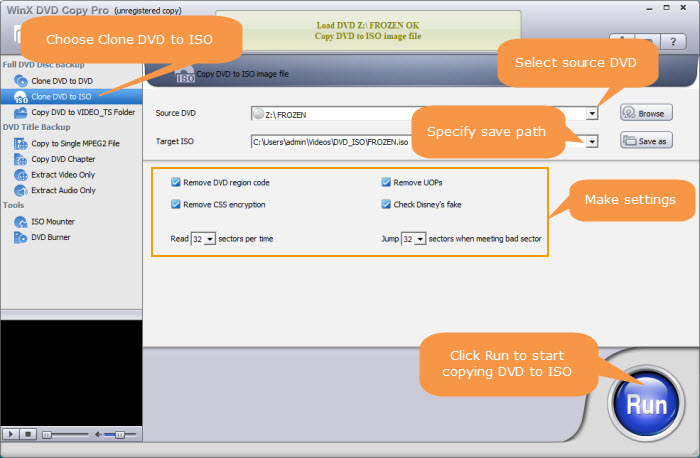
Step 2. Click Browse to select the DVD you want to copy and click Save As to specify a destination folder on your Windows 11/10 computer for the copied DVD file. If you choose to copy DVD to computer in ISO image or Video_TS folder for safe backup, make sure the output folder has enough free space.
Step 3. Hit Run to begin copying DVD to your Windows 11/10 computer in MPEG2, ISO image, or Video_TS folder.
Option 2: How to Copy DVDs to Windows 11/10/8/7 Computer in MP4, AVI, etc.?
If you wish to copy a DVD to your Windows 11/10 computer in MP4 or other digital formats for convenient playback, you can consider using another professional DVD ripper - WinX DVD Ripper.
This software is capable of copying DVDs on Windows 11/10/8/7 in ISO image, VIDEO_TS Folder, or MPEG2 format while maintaining 100% original quality. Moreover, it allows you to copy DVDs to popular formats like MP4, H.264, MPEG-4, MOV, AVI, WMV, FLV, 3GP, and 350+ formats, enabling easy playback on PCs, mobile devices, TVs, and other platforms. It also supports copying DVDs protected by region codes, CSS, RCE, UOPs, Disney X-project DRM, and additional encryption mechanisms.
Step 1: Download the DVD copy software on your Windows 11/10 computer and open it. Then insert the source DVD disc into DVD-ROM of your Windows PC. Click the DVD Disc button to load the source DVD.
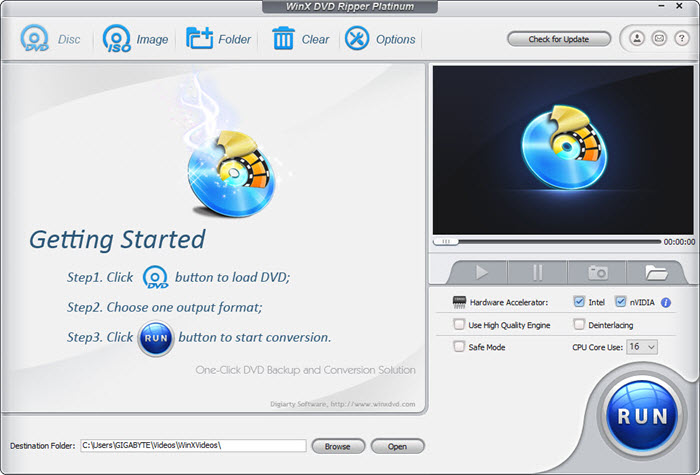
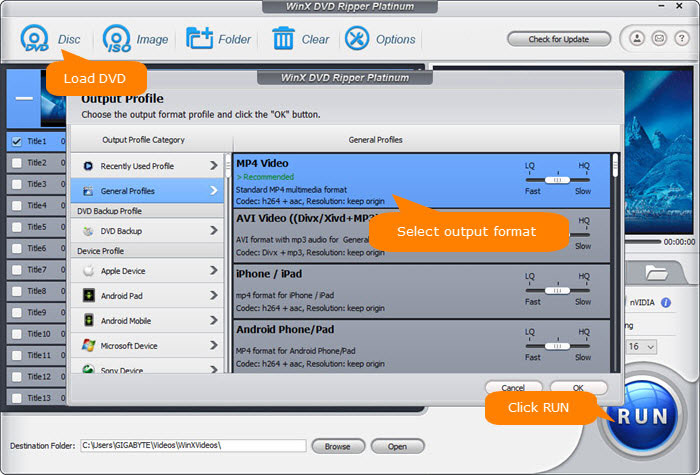
Step 2: The Windows 11/10/7 DVD copy software will then pop up an output format window. Select the format you'd like to store the DVD copy on the Windows PC. Generally, MP4 is the format recommended for most devices and platforms.
Step 3: Click "Browse" button to set a destination folder on your PC to store the copied DVD video file. Then click Run to start coping DVDs to Windows. Don't forget to enable the GPU encoder on the main interface to speed up the DVD to MP4 copy on your computer.
Option 3: Copy Movie Files from DVD on Computer Hard Drive Directly
If the source DVD is a home made disc, you can copy the DVD to your Windows 11/10 computer without using a third-paprty tool. You may follow the steps below:
- Insert the DVD into your computer's DVD-ROM drive. Open File Explorer on your Windows 10 computer and navigate to the DVD drive.
- Locate the movie files on the DVD. These files are usually in the VIDEO_TS folder and have file extensions like .VOB, .IFO, and .BUP.
- Select the movie files you want to copy. You can either copy all the files in the DVD VIDEO_TS folder by pressing Ctrl and A keys together or select specific files by randomly pressing Ctrl and left mouse.
- Right-click on the selected DVD movie files and choose "Copy" from the context menu.
- Navigate to the destination folder on your computer's hard drive to store the copied DVD movie. Then choose "Paste" from the context menu to copy the DVD to your computer on Windows 10/11.
- The time it takes to copy the movie files from the DVD to your computer will depend on the size of the movie files and the speed of your computer.
Conclusion
Copying DVDs to DVDs or computers on Windows 10/11 is a common practice for various reasons, such as backup, convenience, and sharing. It can be done using DVD burning software, which allows you to create an exact replica of the original DVD. This way, you can preserve your favorite movies, TV shows, or other video content and watch them anytime without worrying about damaging or losing the original disc. Additionally, copying DVDs to a computer allows you to organize and manage your digital media library more efficiently.
WinX DVD Copy Pro allows you to copy DVDs to either another DVD or your computer. The software supports copying DVD to DVD, DVD to ISO image, DVD to VIDEO_TS folder, and DVD to MPEG2 file. It also offers options to clone a DVD to a blank DVD disc, copy only the main content, or extract specific parts of a DVD. Additionally, the Windows 11/10 DVD copier supports various DVD formats, including DVD-5, DVD-9, DVD-R, DVD+R, DVD-RW, DVD+RW, and DVD-RAM. With its advanced technology, the software ensures high-quality output with fast copying speed.
Free Download the Best DVD Copy Software for Windows 11/10/8/7
WinX DVD Copy Pro – 1:1 clone DVD to DVD, copy DVD to ISO image file, Video_TS folder, MPEG2 file on Windows (11/10/7) without any quality loss at fastest speed. It supports accessing to all region codes and DVD encryptions, and faultlessly supports Disney's Fake, severely scratched DVDs and Sony ARccOS bad sector. DVD chapter copy and extract audio/video only are also available. Try WinX DVD Copy Pro now.
Part 4. FAQs
Q1. Does Windows 10/11 have DVD copy software?
No, Windows 10/11 doesn't come with a piece of special DVD copy software. But it includes functionality to copy videos to a DVD.
Q2. How do I copy a DVD with Windows 10/11 for free?
If it is a homemade DVD, you may follow the steps below to copy a DVD to another DVD:
- Insert the DVD you want to copy into DVD drive.
- Copy the video files from the DVD to a new folder on your Windows 10 computer.
- Take out the DVD from the DVD drive and replace it with a blank DVD.
- Click Burn files to disc on Autoplay pop-up (or click the option on the dialog box in the notification center)
- Choose using the disc Like a USB flash drive or With a CD/DVD player.
- Click Next to access the blank disc window.
- Move your files into the blank disc window to prepare for burning.
- Click Manage tab -> Finish burning, and then it will burn the content to the disc.
If it is a copy-protected DVD, you need to try a dedicated free DVD copy program that can handle encrypted DVDs. To be honest, free tools always have limited ability to deal with encrypted discs. You may have to download a paid program. To save budget, you can search for a coupon and even a giveaway version .
Q3. What is the best program to copy a DVD?
Q4. How do I copy a DVD to another DVD using Windows Media Player?
Windows Media Player isn't available to copy DVD to DVD directly. You need to copy files from DVD to computer and then burn the files to another DVD with Windows Media Player.
After you copy files from DVD to computer, now you can follow the steps below to burn them to DVD with Windows Media Player:
- Launch Windows Media Player, click Burn, select Burn Options, and choose Data CD or DVD.
- Put a blank DVD into DVD drive and select it in Windows Media Player.
- Find the files you copy from DVD and drag and drop them to the Burn list of Windows Media Player.
- Click Start burn to begin copying files to DVD.
Q5. Can I copy DVDs to Windows Computer with Handbrake?
Handbrake is a popular tool to copy DVDs to computer in MP4/MKV. Here are the steps to use HandBrake to copy a DVD on Windows 11/10/7:
- Download and install HandBrake from the official website and insert the DVD you want to copy into your computer's DVD drive.
- Open HandBrake and click the "Open Source" button to select the DVD you want to copy.
- Choose the destination folder where you want to save the copy of the DVD.
- Select the output format for your copied DVD. HandBrake supports several output formats, including MP4, MKV, and WebM.
- Click the "Start Encode" button to begin the copying process.
Once the copying process is complete, you should have a new copy of your DVD saved to your computer.
Q6. Is it legal to copy DVDs on Windows?
In many countries, making a personal backup copy of a DVD to your computer is legal if you own it legally. However, it's important to note that laws regarding copying DVDs vary depending on where you live, so it's always best to check your local laws.
Additionally, it's illegal to share or distribute copyrighted material without permission from the copyright holder, even if you own the original DVD. In practice, it's totally safe to copy a DVD on your computer as the performance is carried out without the internet.
Disclaimer: Digiarty Software does not advocate ripping/copying copy-protected DVDs for any commercial purpose and suggests referring to the DVD copyright laws in your countries before doing so.